
Annotations
Annotations add text, images, video or captured views to a scene. A content annotation presents information. A jump annotation can switch the data assigned to a LiSplatActor to another dataset.
- On the Annotation page, add an annotation and place it in the viewport.
- Select its type, enter a title and body, and set the icon and color as needed.
- For content annotations, upload JPEG or PNG images, or MP4 video. For jump annotations, select the destination scene data in the panel.
- Click the marker to check its content or jump behavior. Select an existing annotation to edit or delete it.
For Photo, move to the position to capture, adjust the view and take a picture. Up to 5 captured images can be stored. Click Done to return to the annotation.
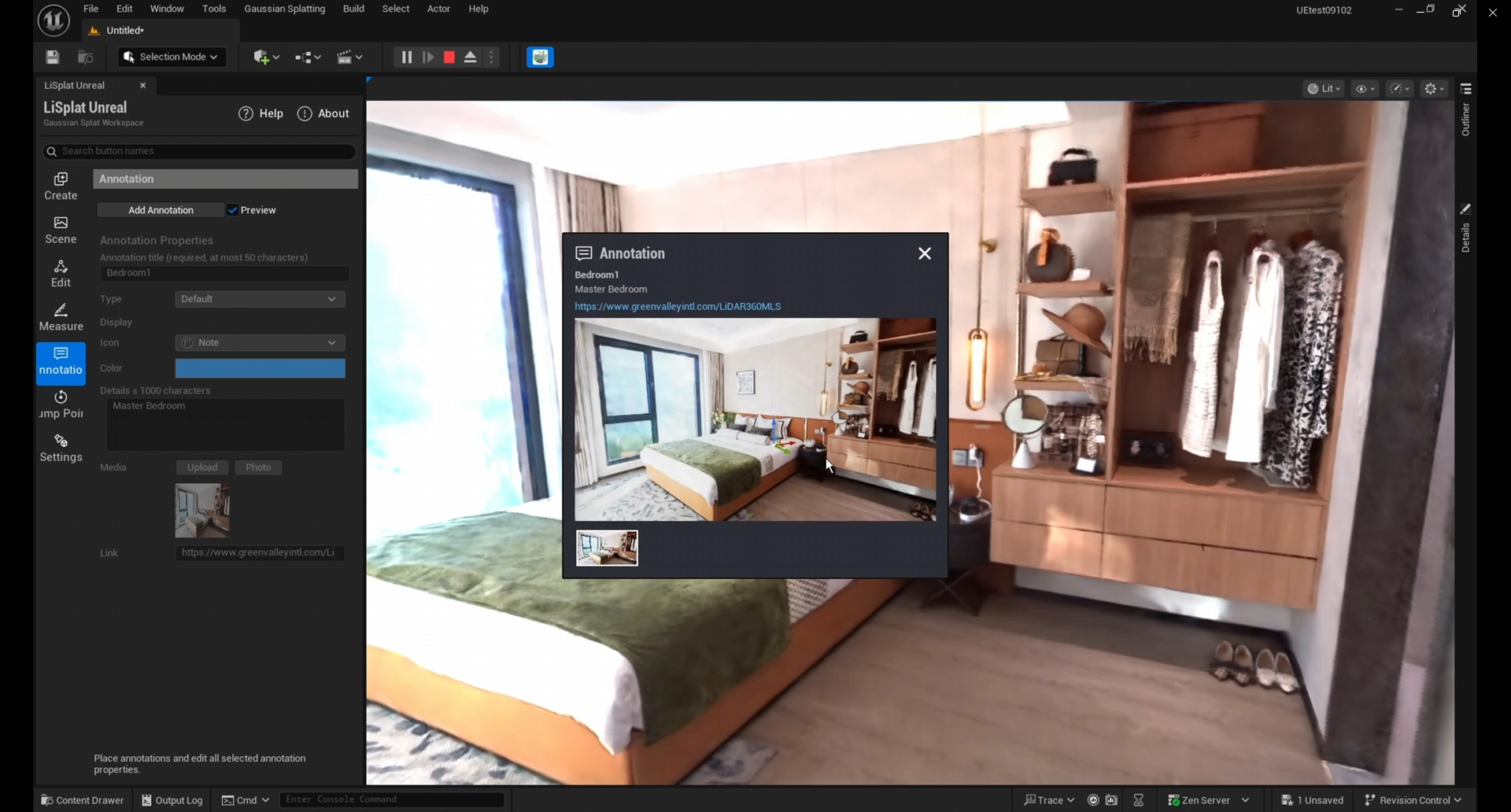 Figure: Create and edit an annotation