
nDisplay Multi-Display Rendering
LiSplat Unreal SDK can render 3DGS data in an nDisplay scene. The following uses an nDisplay template configuration for setup and editor preview. A multi-computer deployment additionally needs cluster nodes and a runtime configuration matching its screens.
Enable nDisplay
Open Edit → Plugins, search for nDisplay, enable it and restart the project when prompted.
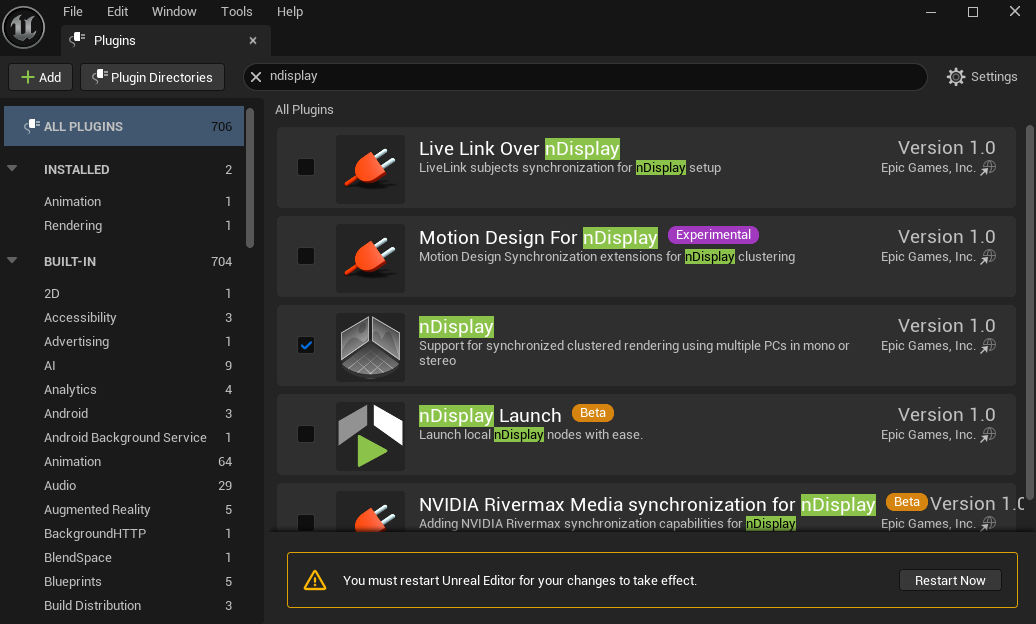 Figure: Enable the nDisplay plugin
Prepare the Display Configuration
- Create a project from the nDisplay template.
- Find NDC_WallCurved3x2 under the template project's
Content/ExampleConfigs. - Migrate the configuration asset and its dependencies to the project containing LiSplat. When copying example files, retain the corresponding
.uasset,.ndisplayand related resources. - Open the configuration and adjust nodes, viewports, resolutions and display positions for the actual screen layout.
Place and Preview
- Drag NDC_WallCurved3x2 from the Content Browser into the level containing the loaded LiSplat data.
- Position it with Move and Rotate or its Transform values.
- Right-click the configuration object in the Outliner and select Pilot for that object. Inspect the displayed scene.
- Move the camera and check that the viewports update and the screen arrangement is correct.
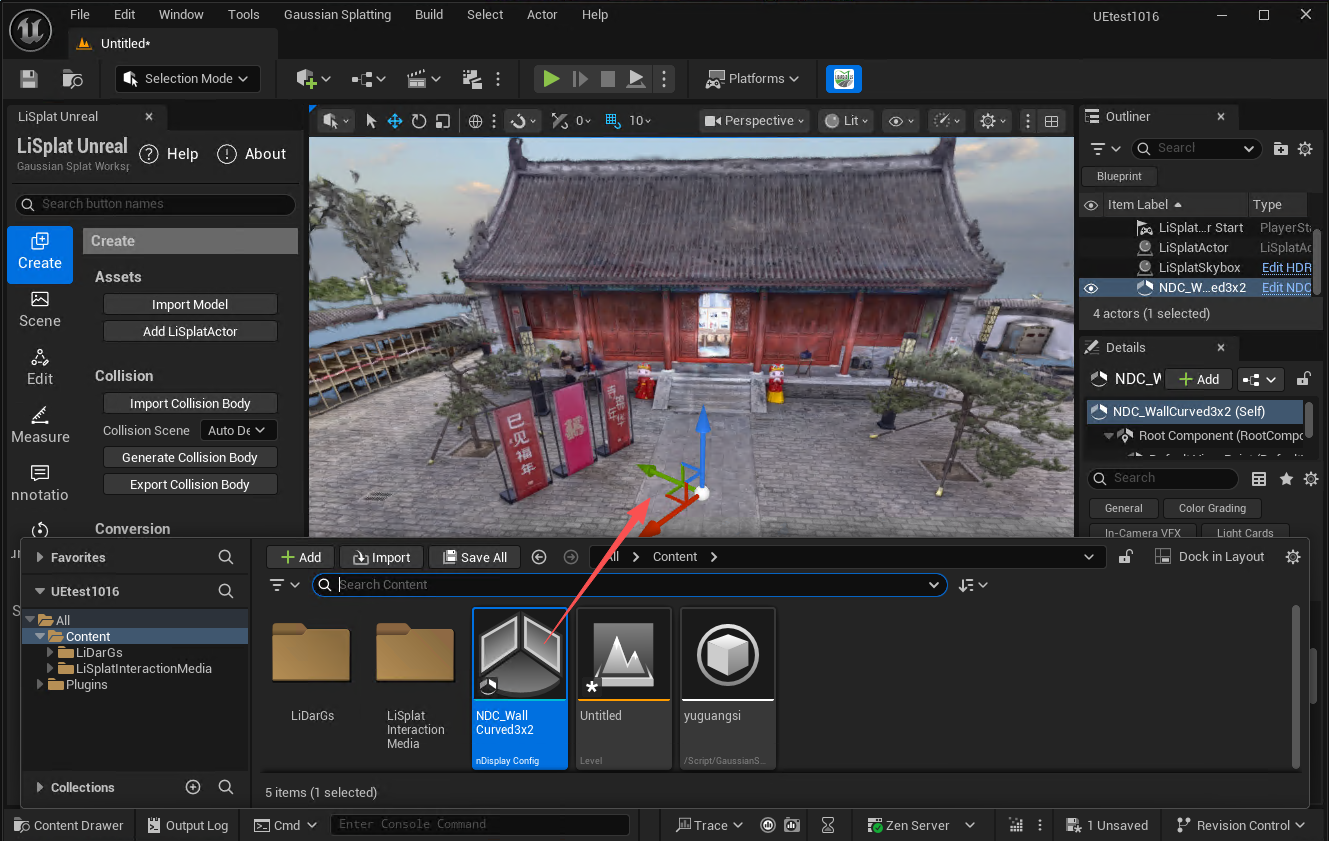 Figure: Place the nDisplay configuration
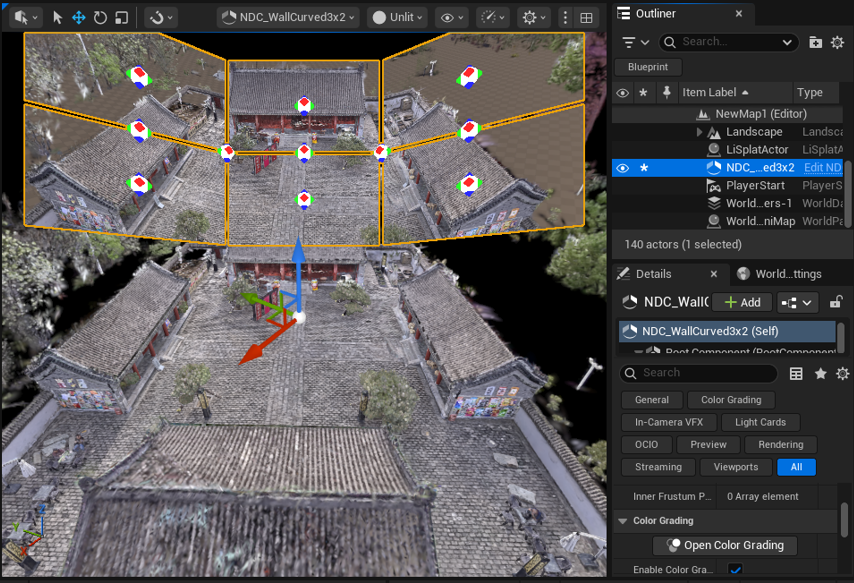 Figure: nDisplay preview result
Run on Multiple Displays
After editor preview, set the actual hosts and viewports in the nDisplay configuration and launch using UE's cluster workflow. Multiple displays increase total rendering resolution. When optimizing performance, inspect point counts and frame rate with all viewports running. See Project Packaging to prepare an application.