
Quest 3 PC Streaming Guide
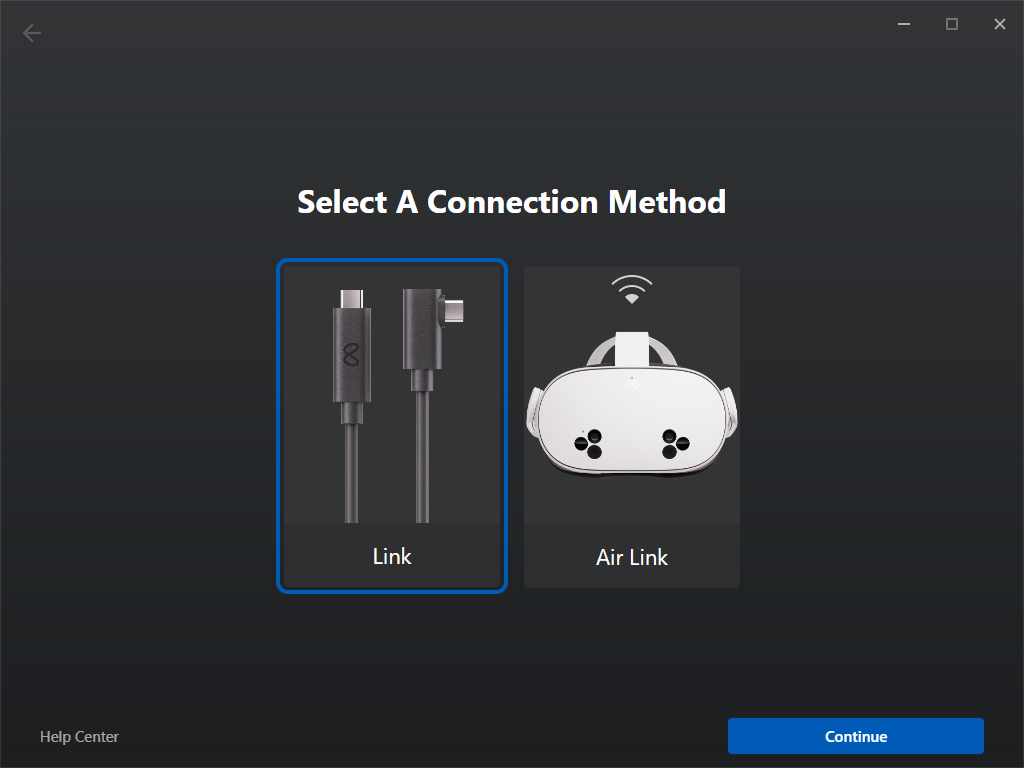
This guide explains how to stream a LiSplat Unreal SDK scene from a Windows PC to Quest 3 through Meta Horizon Link. You can use USB Link or Air Link and run SteamVR/PCVR content inside the Link environment.
Normal Link, SteamVR, and PCVR streaming generally do not require headset Developer Mode. A developer account and Developer Mode are needed for workflows such as ADB, APK sideloading, and on-device Unreal debugging.
1. Choose a connection method
| Method | Best for | Main requirements |
|---|---|---|
| USB Link | Initial setup, stable low latency | USB 3/USB-C data cable and an available USB 3 port |
| Air Link | Wireless and room-scale use | PC and headset on the same LAN; Ethernet for the PC; 5 GHz/6 GHz Wi-Fi for the headset |
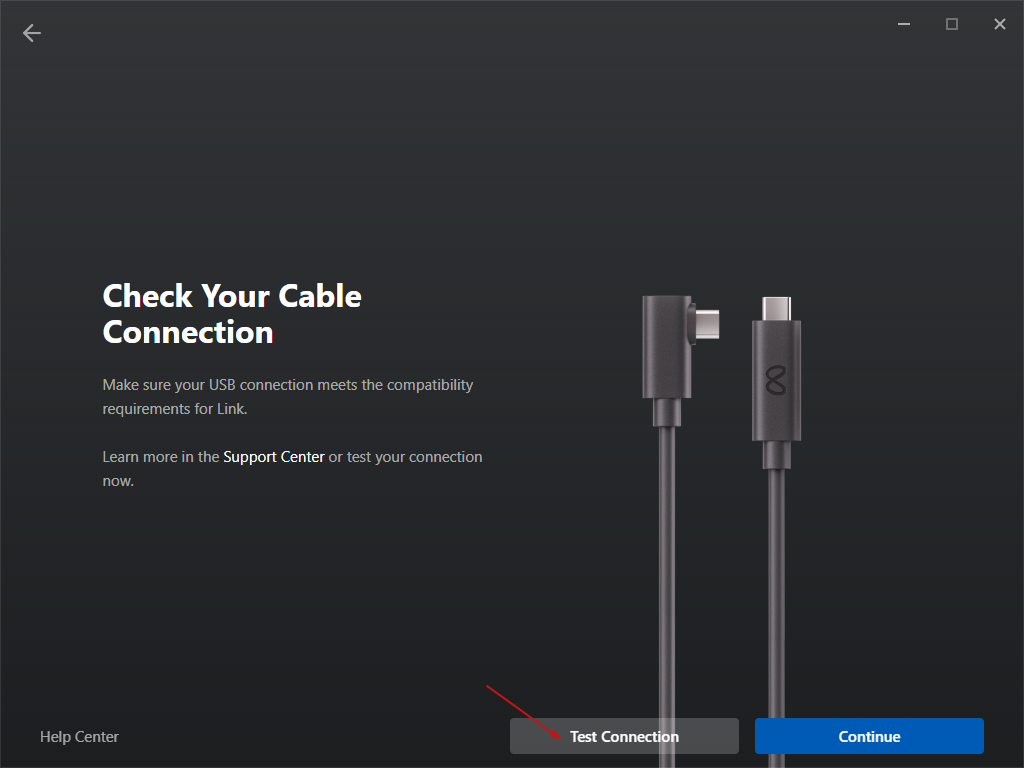
Meta documents Link as Windows-only. For development, use a cable rated for 5 Gbit/s or higher when possible. Meta Horizon Link includes a USB speed test.
2. Install and sign in to Meta Horizon Link
In the default browser, sign in to the Meta account that will be used by Meta Horizon Link.
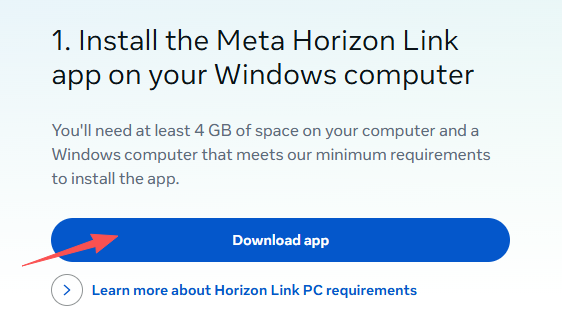
Download and install the Windows client from Meta's official Link documentation.
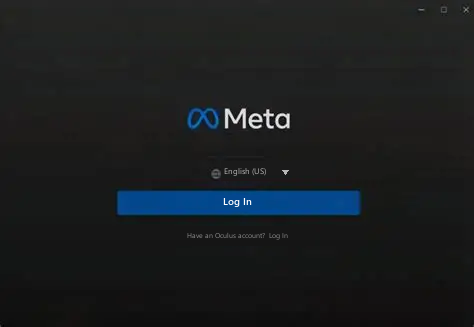
Open Meta Horizon Link and select Sign in. Authentication continues in the browser.
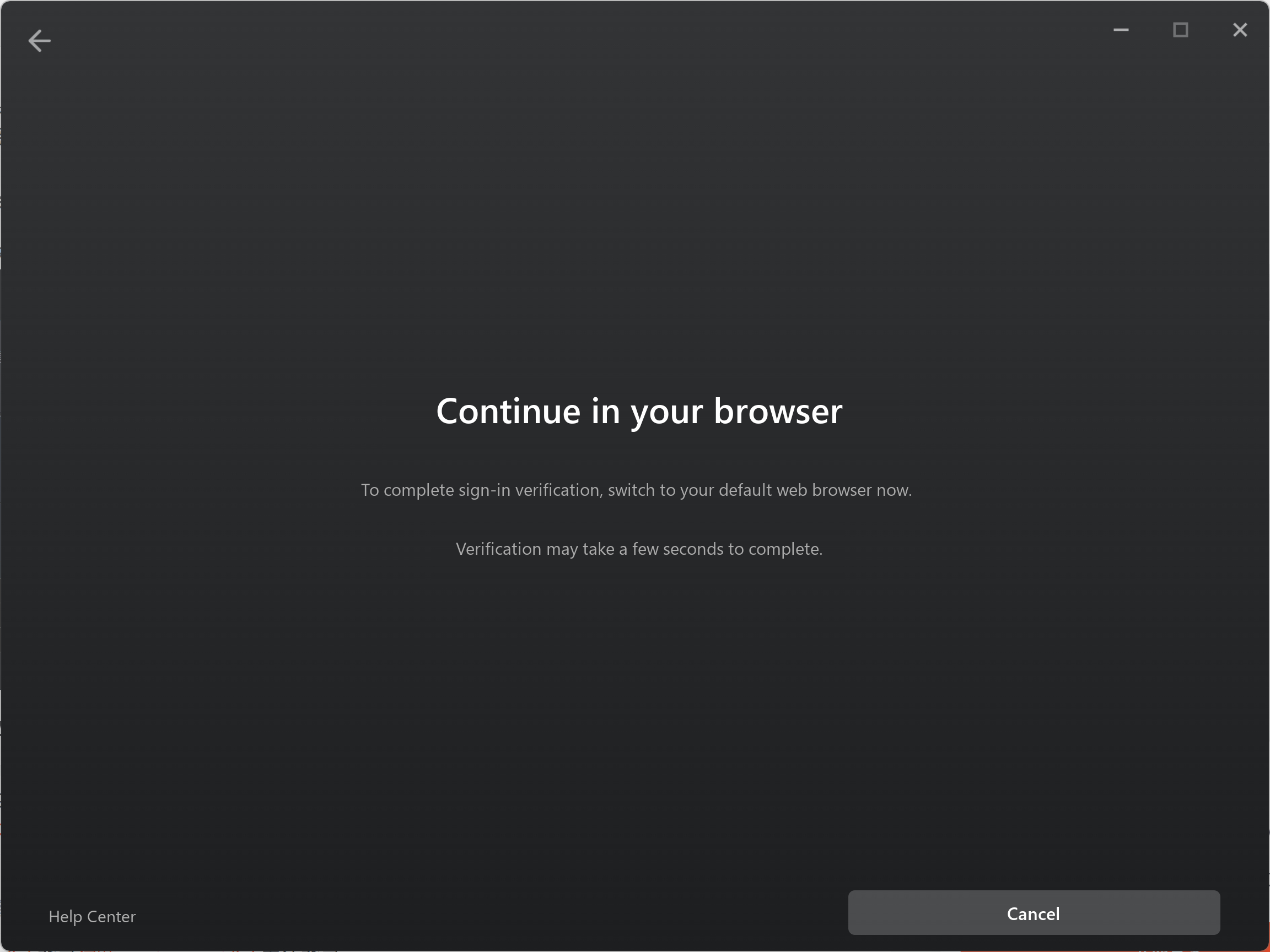
Complete authentication and return to the client.
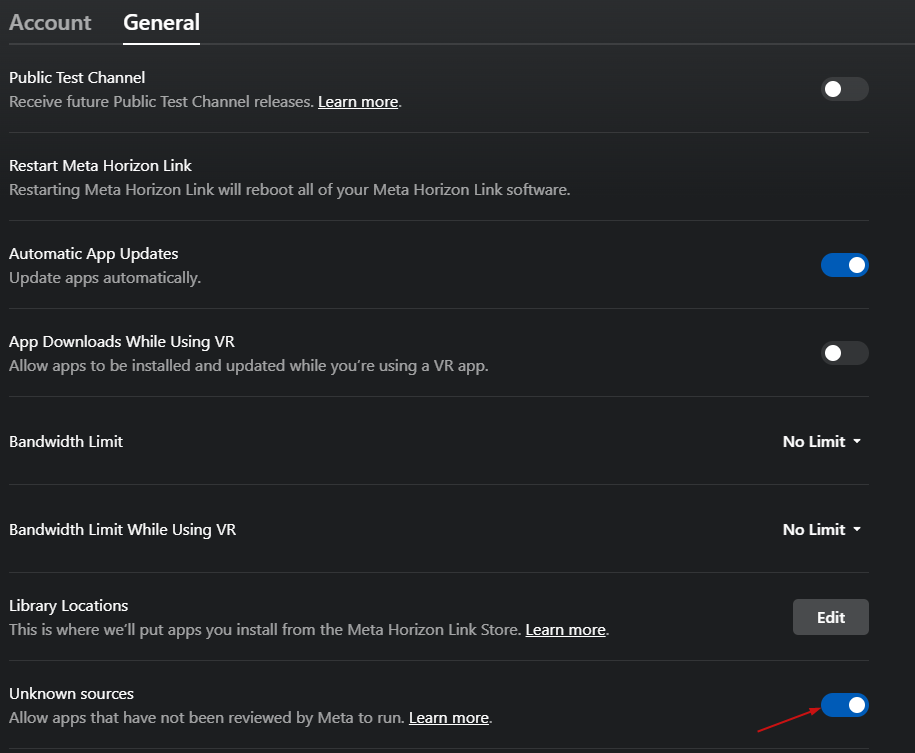
Under Settings > General, enable the option that allows unknown or unreviewed applications. The exact label may change between client versions.
3. USB Link
Connect Quest 3 to the PC with a USB 3 data cable.
On the first connection, put on the headset and accept any connection or access prompt.
Open Devices in Meta Horizon Link and confirm that Quest 3 is connected.
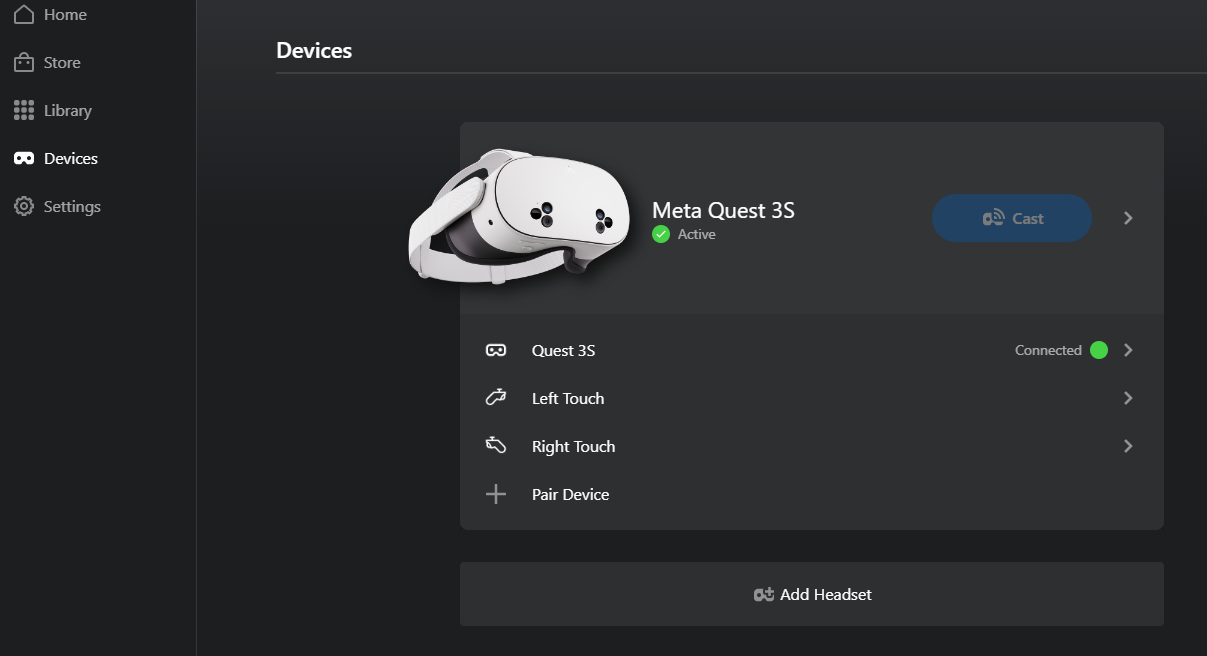
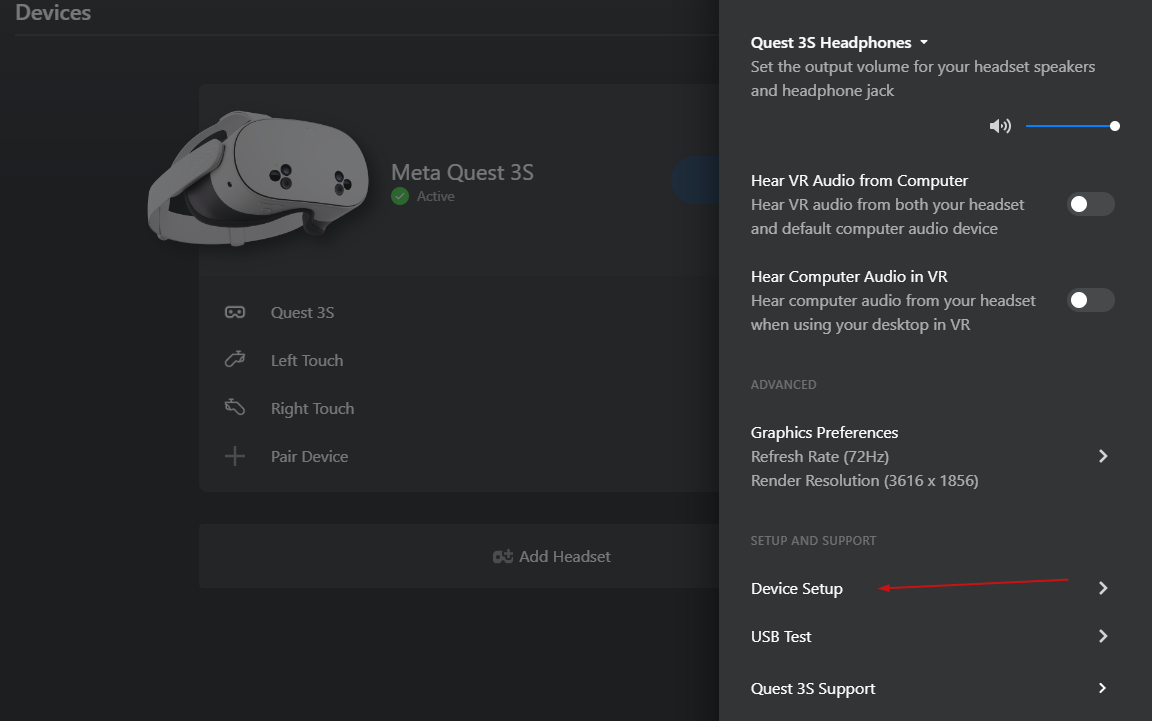
In the device details, run USB Test / Test Connection. If the result is incompatible or slow, try another cable, port, or USB adapter.
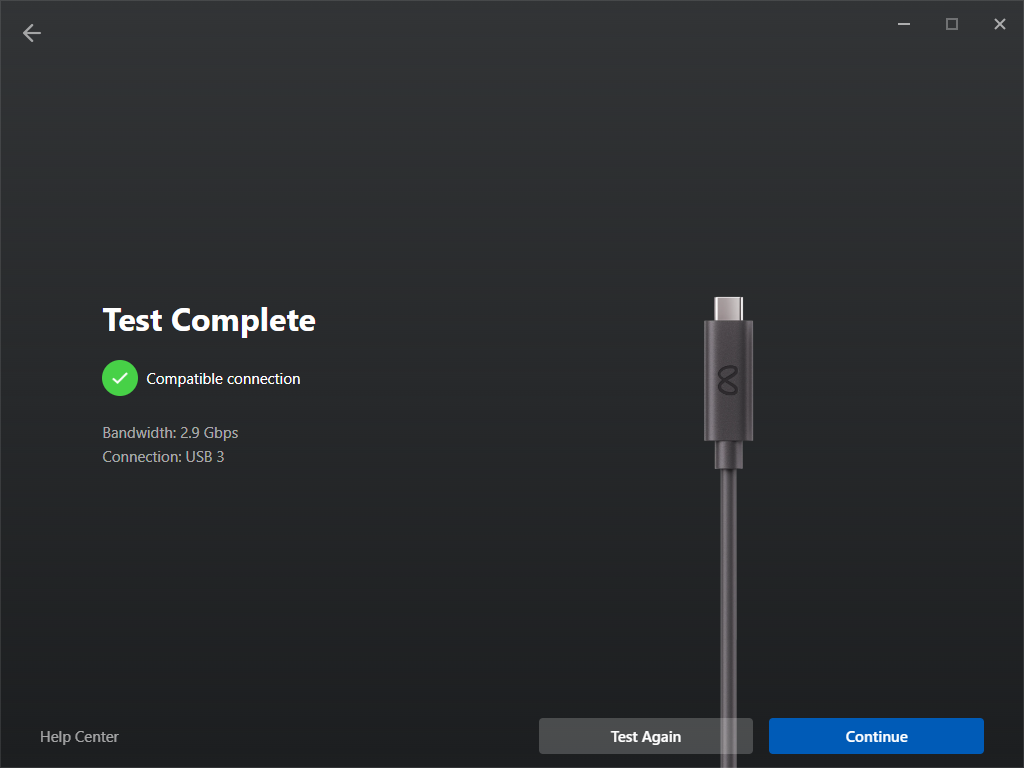
In the headset, open Settings > Link, enable Link, and select Launch Link.
After entering the Link room, use the lower toolbar to open the desktop or leave Link.
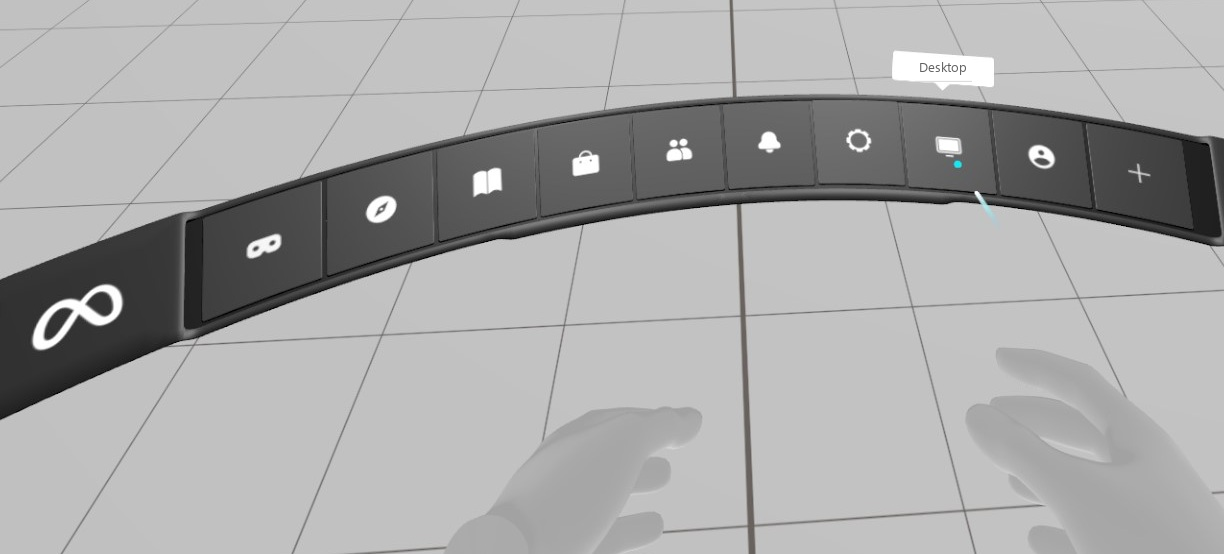
4. Air Link wireless connection
- Connect the PC to the router over Gigabit Ethernet when possible.
- Connect Quest 3 to the same router over 5 GHz or 6 GHz Wi-Fi.
- Keep Meta Horizon Link running on the PC.
- In the headset, open Settings > Quest Link and select Air Link/wireless mode.
- Select the PC, verify the pairing code shown on both devices, and confirm.
- Select Launch to enter the Link environment.
If pairing fails, check guest-network or AP isolation, VPN, firewall, multi-router, and wireless-repeater settings.
5. Launch a LiSplat Unreal scene
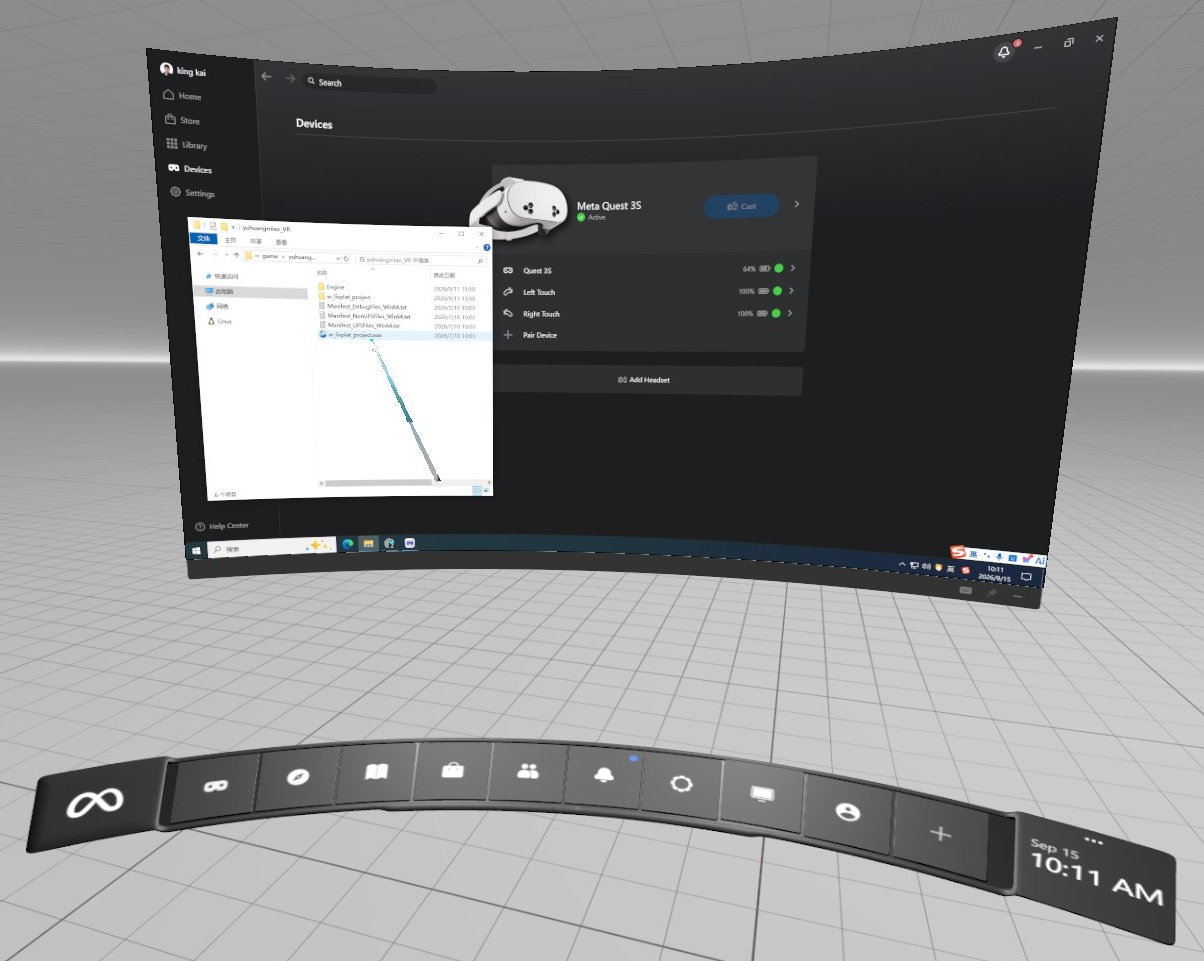
Open Desktop from the Link toolbar to display the remote Windows desktop.
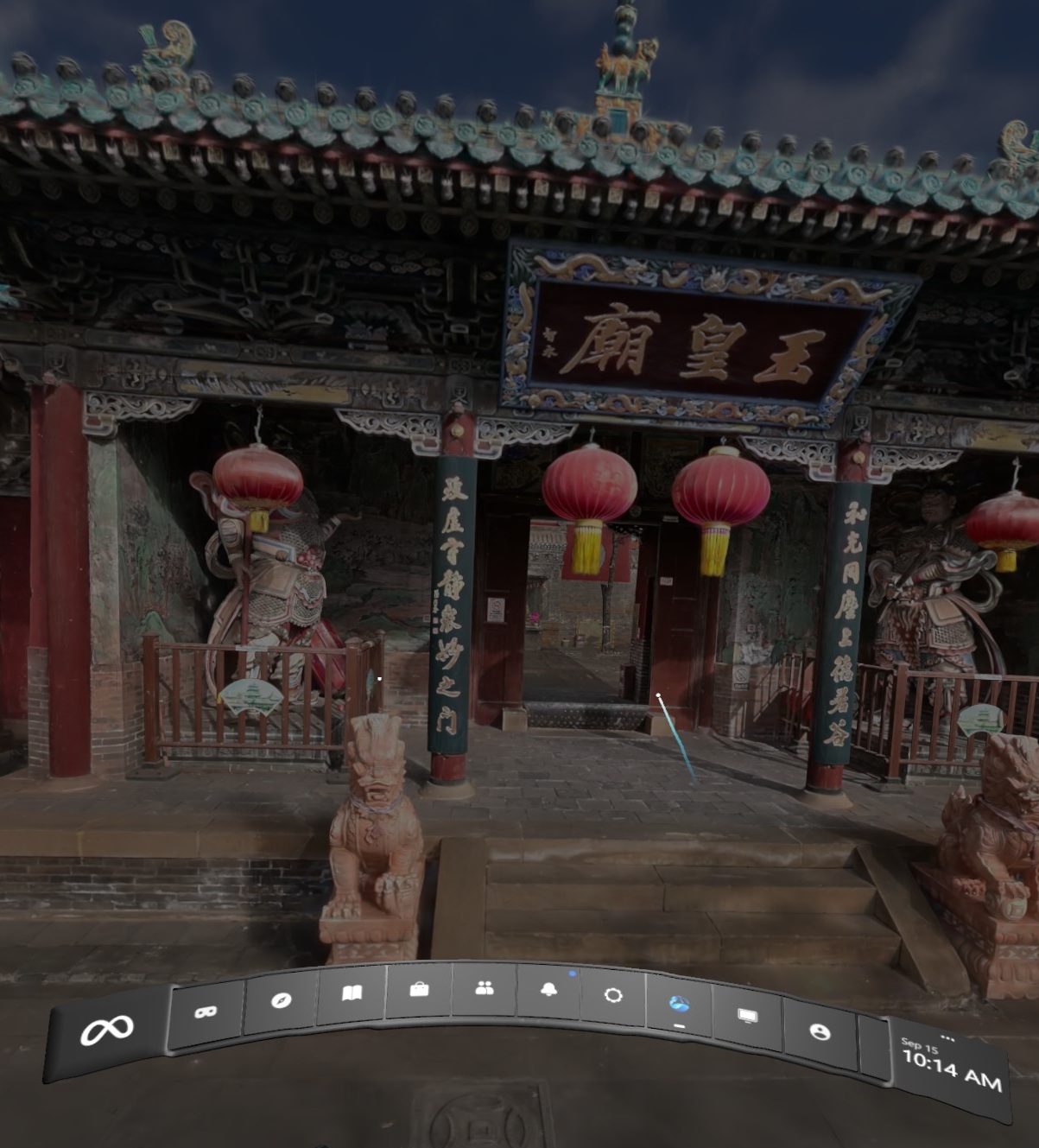
Start VR Preview in Unreal Editor or launch the packaged Windows VR executable.
6. Troubleshooting
- The cable only charges: confirm that it supports data, try a USB 3 port, and run the client's USB test.
- Streaming stutters: for Air Link, check the Wi-Fi band, channel congestion, and whether the PC is wired; switch to USB Link if necessary.
- The headset cannot find the PC: confirm the client is signed in and running, both devices are on the same LAN, and the firewall allows Meta Horizon Link.
- The app is a flat window: verify that it is running as a PCVR/OpenXR application, not in normal desktop mode.
- A local app will not run: verify that unknown/unreviewed sources are allowed and that the application's architecture and OpenXR runtime settings are correct.