
Performance Optimization
Image clarity and smooth navigation depend on data size, hardware and rendering settings. Try Full Rendering first. If the frame rate drops, adjust quality and point counts gradually.
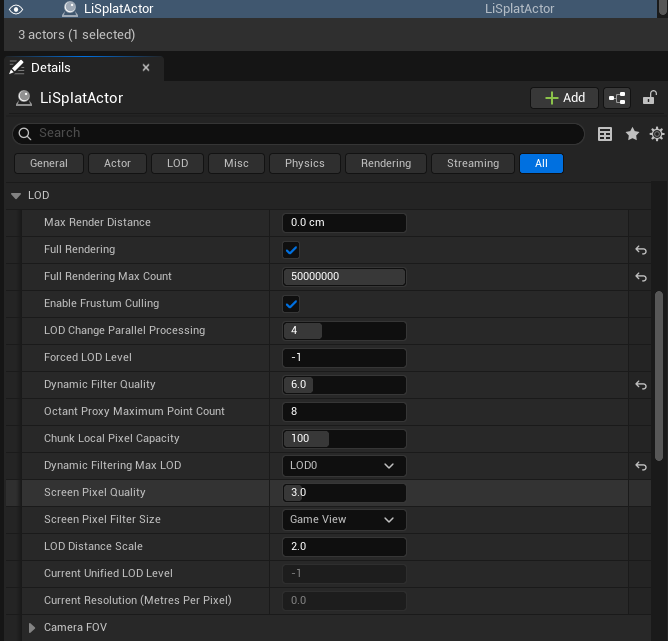 Figure: Performance and Full Rendering settings
Full Rendering
- Select the LiSplatActor and enable Full Rendering in the performance settings in Details.
- Set Full Rendering Max Count high enough to cover the dataset's total point count.
- Wait for loading to finish, then move the view to check clarity and smoothness.
Full Rendering can reduce blur and brief pauses during movement, but increases hardware load. More capable computers can use a higher maximum point count. If stuttering persists, reduce the point count or disable Full Rendering.
Performance Statistics
Select the LiSplatActor and click Stats to check frame rate, point count and memory usage. Compare settings at the same resolution while moving along the same route.
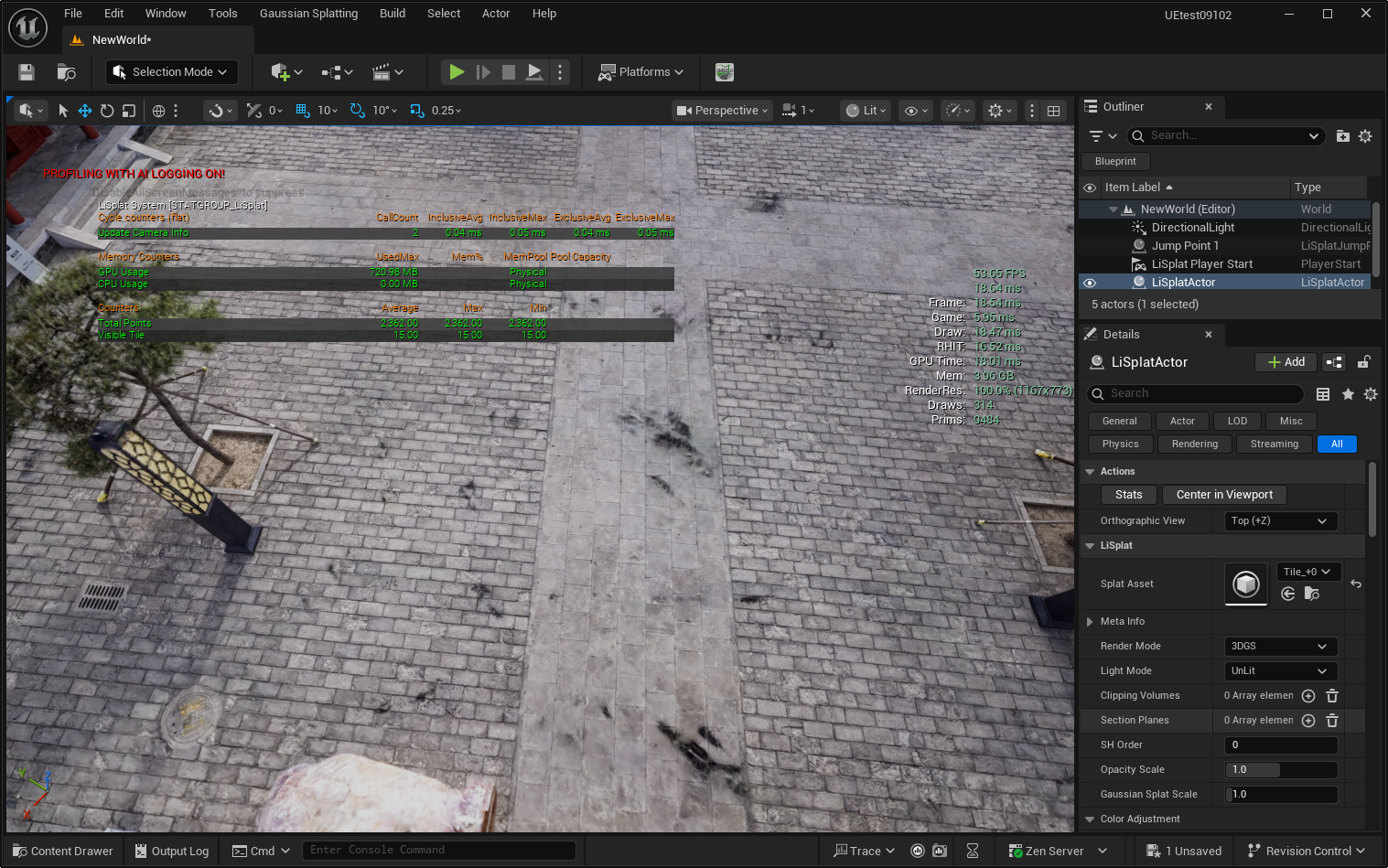 Figure: Scene performance statistics
Common Quality Settings
| Parameter | Usage |
|---|---|
| Screen Pixel Quality | Increase slightly for more detail; decrease if the load is too high |
| Forced LOD Level | Normally use automatic selection; specify a level only to compare detail |
| Enable Frustum Culling | Normally leave enabled |
| Dynamic Filter Quality | Increase for more detail at a higher load; make small changes |
| Max Render Count | Reduce when navigation is not smooth, then check the remaining detail |
| Max Render Distance | Reduce distant content when only a local area needs to be viewed |
Keep other advanced settings at their defaults.
Adjustment Order
- Enable statistics at the resolution you normally use.
- Try Full Rendering with a suitable maximum point count.
- If stuttering continues, reduce the point count, output resolution or lighting complexity.
- Change one setting at a time, compare the same area, then save the level.