
VR Preview and Export
The SDK supports previewing through a PC-connected VR headset and exporting a Windows VR application. Connect the headset to the computer, generate collision and enable it before starting.
Connect the Headset
For PICO 4 Ultra, use PICO Connect for USB or Wi-Fi streaming. Installation, pairing and SteamVR configuration are described in the PICO 4 Ultra PC Streaming Guide.
Confirm that the headset displays the computer, start the required VR runtime, then open the project. If streaming only shows a flat desktop window, check the guide's OpenXR / PCVR startup instructions.
VR Preview
- Load the scene and set Player Start. Generate or import collision, enable Enable Collision and wait for it to load.
- Click VR Preview on the SDK's Scene page.
- Put on the headset and check position, direction, movement and interaction.
- Adjust the VR parameters below based on the rendering result, then compare again.
 Figure: VR navigation and preview
VR Parameters
Select the LiSplatActor and adjust Details → VR. In preview, compare clarity and smoothness while changing one setting at a time.
| Parameter | Usage |
|---|---|
| VR Full Data Max Splat Count | Set according to data size and hardware; check smoothness and VRAM use after increasing it |
| Global Hard Max Resident Splats | Reduce if the load is too high, then check distant detail |
| Dynamic V2 Update Distance Cm | Reduce if the image updates too slowly after movement; values are in centimeters |
Keep other advanced settings at their defaults.
Export a VR EXE
For VR EXE export, please use LiSplat Actors that have not been edited. Editing does not directly modify the data in the model file, so the current export does not include those edits.
- Save the project and level. Both Blueprint and C++ projects can export a VR EXE.
- Enable collision, wait for it to finish loading, and stop the current Play or preview session.
- Click Export VR EXE, choose an output folder and wait for completion.
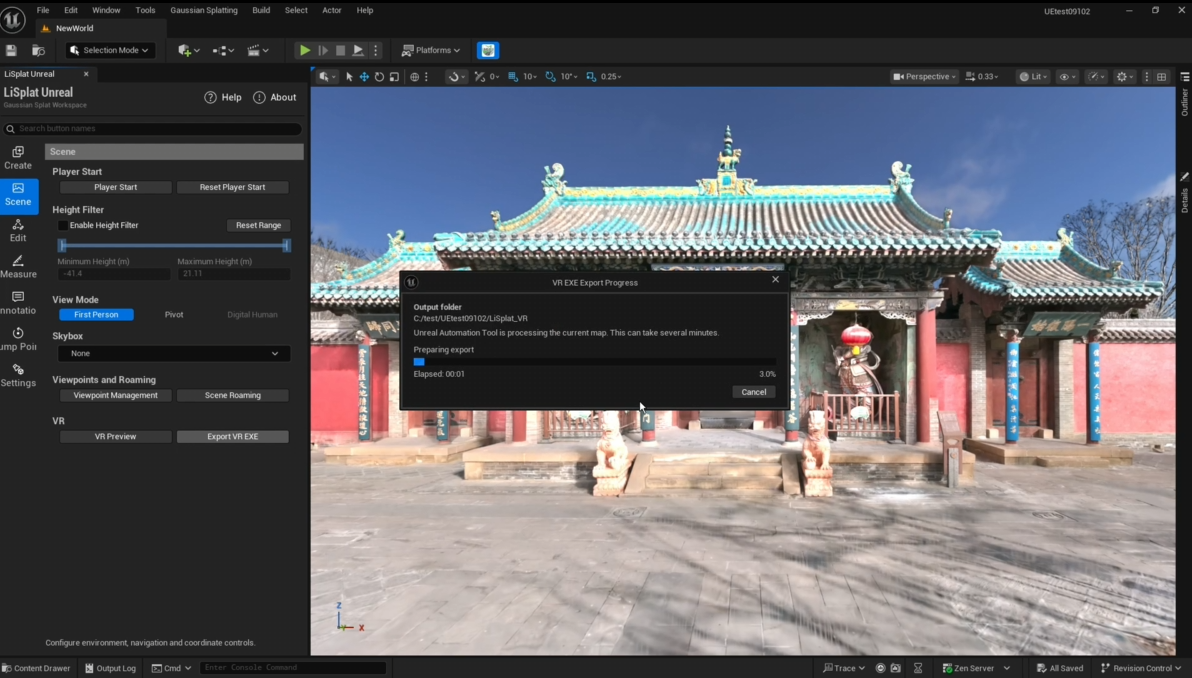 Figure: Export a VR EXE
If the message below appears, use Edit → Save As to export the edited result. Re-import that file, replace the original Actor, and export using the new, unedited Actor.
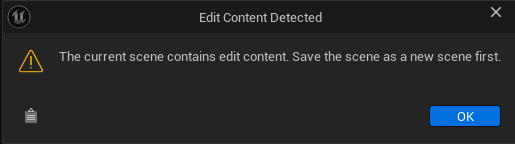 Figure: Export warning when edit content is detected
Run the Exported Application
Keep PC streaming connected to the headset, then double-click the exported .exe. View the streamed scene in the headset and check the starting position, navigation, interaction, collision and rendering.