
Collision
Collision allows characters and interactive objects to contact surfaces such as floors and walls. Import or generate it on the Create page, then enable it on the LiSplatActor.
Import or Generate Collision
- If a collision mesh is available, click Import Collision Body and select a PLY or OBJ mesh.
- To generate collision from Gaussian data, select a suitable preset, click Generate Collision Body and wait for completion.
- Select the LiSplatActor and enable Enable Collision.
- Enable Show Loaded Collision and check that the mesh aligns with the ground and walls.
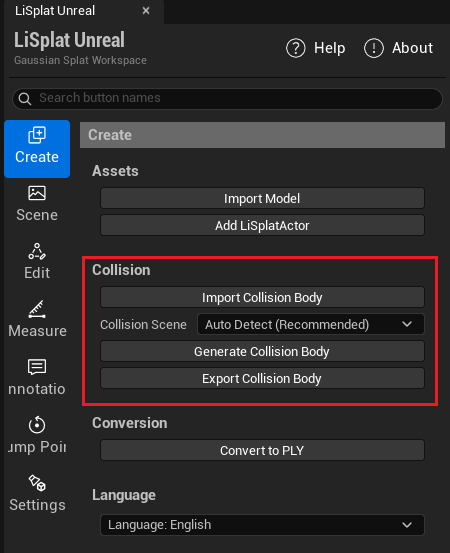 Figure: Collision import, generation and export
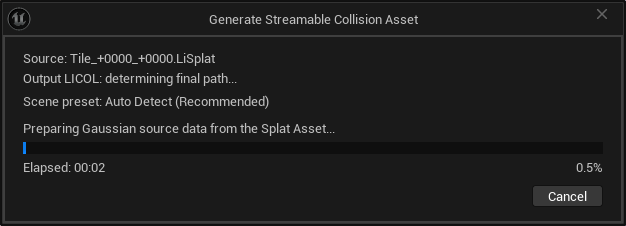 Figure: Generate collision data
Check Character Interaction
- Select third-person navigation, or use the project's character and GameMode.
- Place Player Start above the ground at a suitable position, outside walls and collision geometry.
- Click Play and test landing, walking, doorways and obstacle blocking.
- Turn off collision visualization after checking the result.
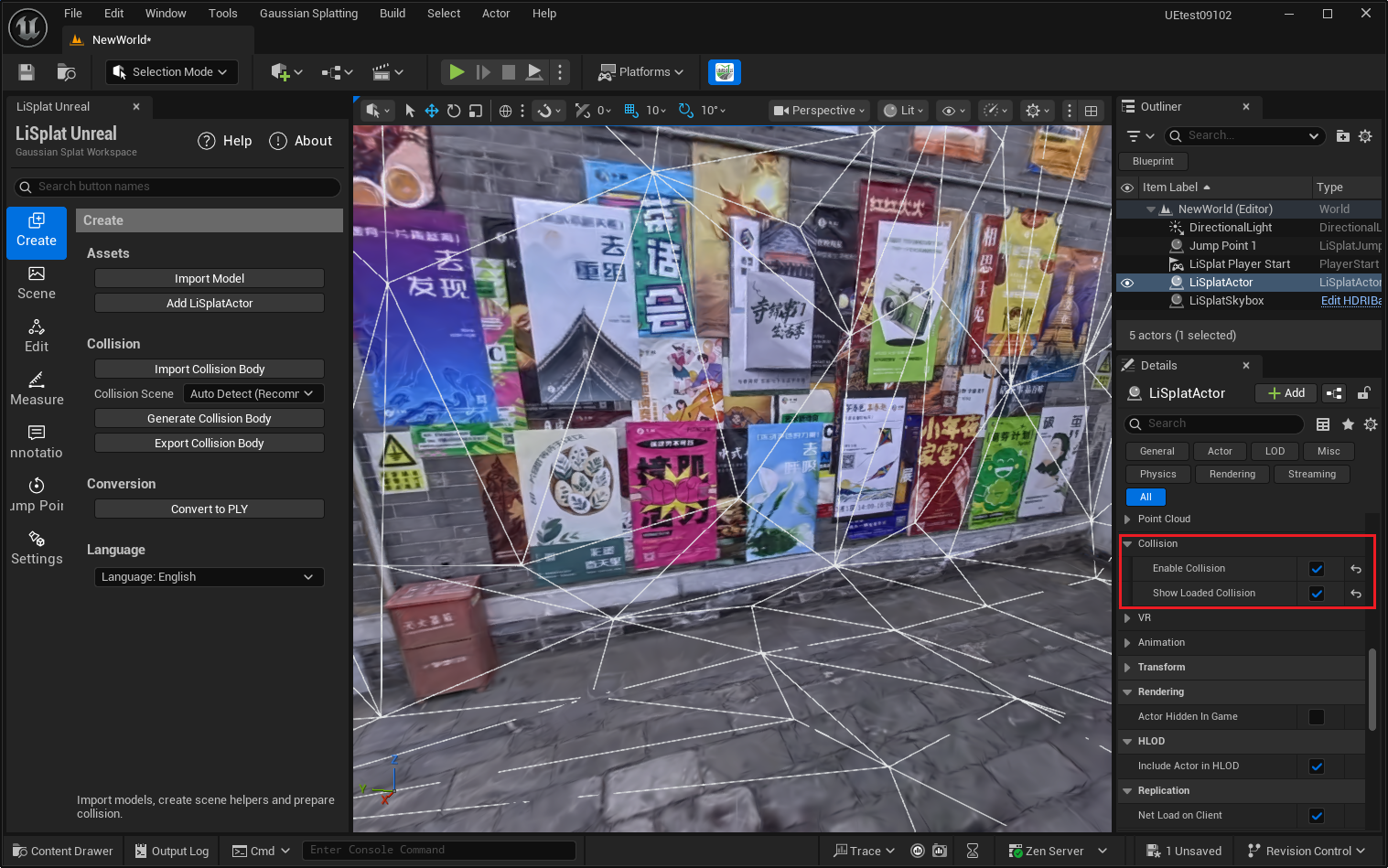 Figure: Display collision and test third-person interaction
Enable Collision controls blocking. Show Loaded Collision only displays a debug mesh. A visible mesh alone does not confirm that the character's collision channels are configured correctly.
Export and Match Data
Export Collision Body exports a standard PLY triangle mesh. After changing the scene asset, check alignment again. Regenerate or import matching collision if the data has changed substantially.