
Navigation and Transforms
Select a LiSplatActor in the Outliner to adjust the data's position, viewing direction and camera speed. Navigation moves the camera; editing Transform moves or resizes the scene data.
Editor Viewport
| Mouse action | Camera control |
|---|---|
| Drag with the left mouse button | Drag left or right to rotate; drag up to move forward and down to move backward |
| Drag with the right mouse button | Rotate the view |
| Scroll the mouse wheel | Scroll forward to move forward; scroll backward to move backward |
| Drag with the mouse wheel held down | Pan the view |
| Mouse and keyboard | Camera control |
|---|---|
| ↑ / Hold the right mouse button + W | Move forward |
| ↓ / Hold the right mouse button + S | Move backward |
| ← / Hold the right mouse button + A | Move left |
| → / Hold the right mouse button + D | Move right |
| Hold the right mouse button + Q | Move up |
| Hold the right mouse button + E | Move down |
Adjust Camera Speed on the editor viewport toolbar. Higher values move the camera faster.
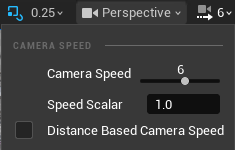 Figure: Camera speed in the editor viewport
Play Mode
Click Play, then click the viewport before using these controls. They apply to the SDK's default first-person navigation. Third-person or custom Pawns may use different bindings.
| Action | Result |
|---|---|
| Drag with the left mouse button | Rotate the view |
| Drag with the right mouse button | Pan the view |
| Scroll the mouse wheel | Move forward / backward |
| Drag with the mouse wheel held down | Rotate the view |
| W / S | Move forward / backward |
| A / D | Move left / right |
| Q / E | Move up / down |
| Shift + F1 | Show the cursor to interact with the editor |
| Esc / Stop | End the editor play session |
Transform Parameters
Select the LiSplatActor and edit Details → Transform, or use the viewport's Move, Rotate and Scale tools. In editing mode, W, E and R select those tools respectively.
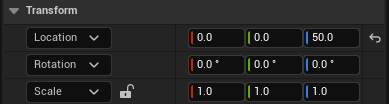 Figure: LiSplatActor location, rotation and scale
| Parameter | Description |
|---|---|
| Location | World-space X, Y and Z position. UE uses centimeters by default; changing these values moves the entire Actor |
| Rotation | Roll, Pitch and Yaw describe orientation in degrees |
| Scale | Size along X, Y and Z, with a default value of 1. Use uniform scaling to preserve proportions |
Save the level after making changes. When aligning multiple datasets, check location, rotation and scale separately. Scaling only one axis can distort the model.
Centering and Orthographic Views
Click Center in Viewport under LiSplatActor → Details → Actions to center the data in the viewport.
Select Front, Back, Left, Right, Top or Bottom under Orthographic View. The viewport refreshes when the direction changes.
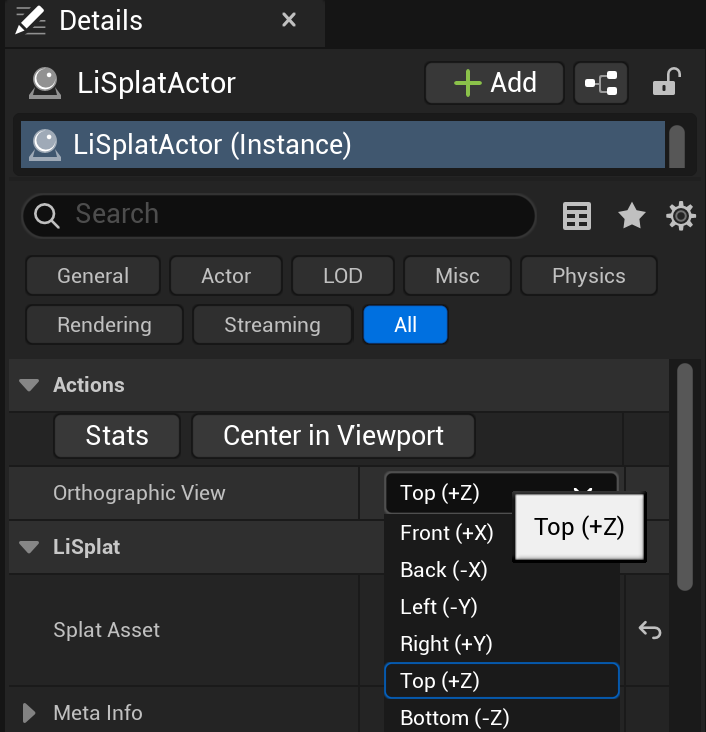 Figure: Center in Viewport and orthographic viewing directions