
PICO 4 Ultra PC Streaming Guide
This guide explains how to stream a LiSplat Unreal SDK scene from a Windows PC to PICO 4 Ultra through PICO Connect. The same setup can run SteamVR and other PCVR content.
1. Choose a connection method
| Method | Best for | Main requirements |
|---|---|---|
| USB wired streaming | Initial setup, stable low latency | A data-capable cable using USB 3.0 or later |
| Wi-Fi wireless streaming | Wireless movement and room-scale use | Headset and PC on the same LAN; preferably connect the PC to the router over Gigabit Ethernet |
2. Install and configure PICO Connect
Download and install the Windows client from the official PICO Connect page.
Install Steam and sign in.
Install SteamVR from Steam.
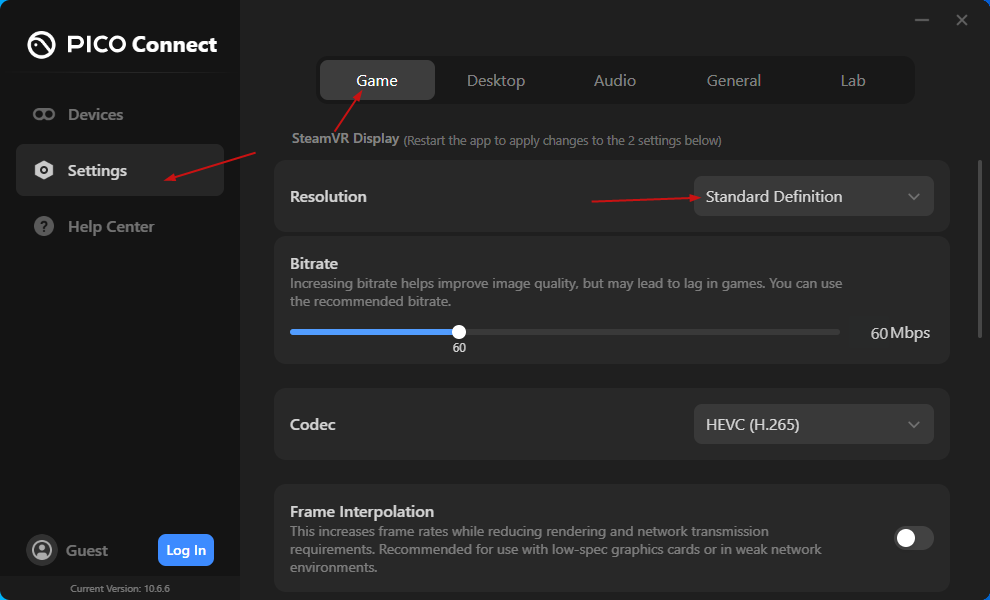
Open PICO Connect. Under Settings, tune image quality, bitrate, frame rate, and codec for the workstation and network.
3. USB wired connection
- Start PICO Connect on the PC.
- Connect the headset to the PC with a data-capable cable using USB 3.0 or later.
- Put on the headset, open PICO Connect on the device, and select the current PC.
- After connecting, confirm that the headset can display and control the PC desktop.
4. Wi-Fi wireless connection
- Connect PICO 4 Ultra and the PC to the same Wi-Fi LAN.
- Preferably connect the PC to the router over Gigabit Ethernet.
- Start PICO Connect on the PC.
- Put on the headset and open PICO Connect on the device.
- Select the current PC from the available-computers list and complete pairing.
- After connecting, confirm that the headset can display and control the PC desktop.
If the PC is not discovered, confirm that both devices are on the same LAN and disable guest-network isolation.
5. Launch a LiSplat Unreal scene
Use either workflow:
Run VR Preview in Unreal Editor with the project's PCVR/OpenXR configuration.
Launch the packaged Windows VR executable (
.exe).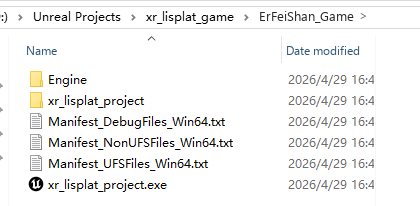
In the headset's floating toolbar, select Return to SteamVR, then open the target scene. If the application appears only as a flat window, verify that the project was launched in VR/OpenXR mode.
6. Troubleshooting
- Stutter or soft image: check whether the wired or wireless connection provides Gigabit bandwidth; lower the resolution, frame rate, or bitrate in PICO Connect.
- PC is not discovered: check that both devices are on the same subnet and that guest Wi-Fi, AP isolation, VPN software, or a firewall is not blocking LAN discovery.
- SteamVR does not start: start Steam and SteamVR first, then reconnect PICO Connect.
- USB cable only charges: use a cable explicitly rated for data transfer and a USB 3 port.
- Unreal scene is not immersive: enable OpenXR/the required XR provider for Windows and use VR Preview or a PCVR build.