
Mark Part Point
Summary
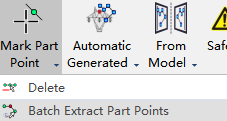
Mark Part Point
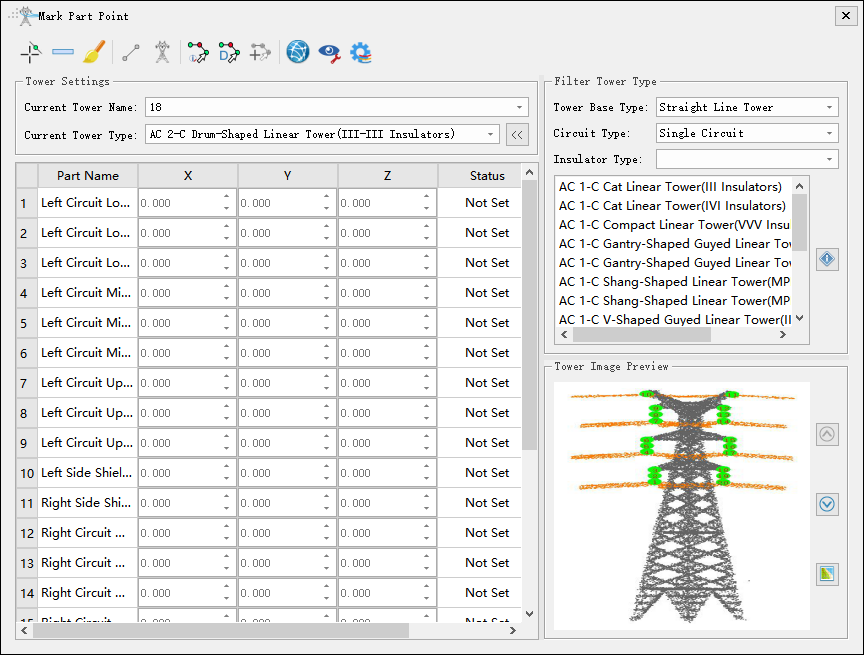
Note: Before marking part points, it is necessary to mark tower and set the tower type.
Tower Settings
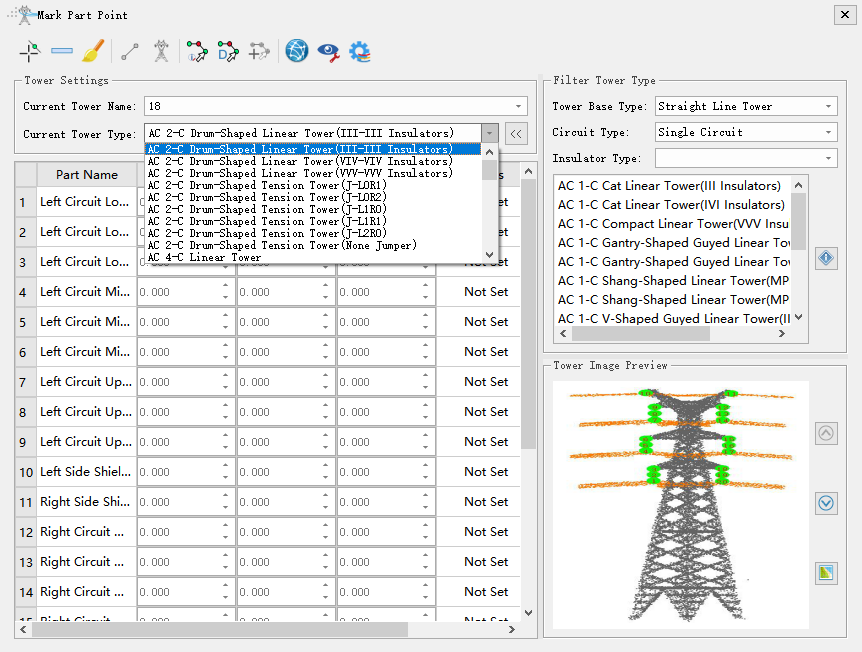
Mark Part Point

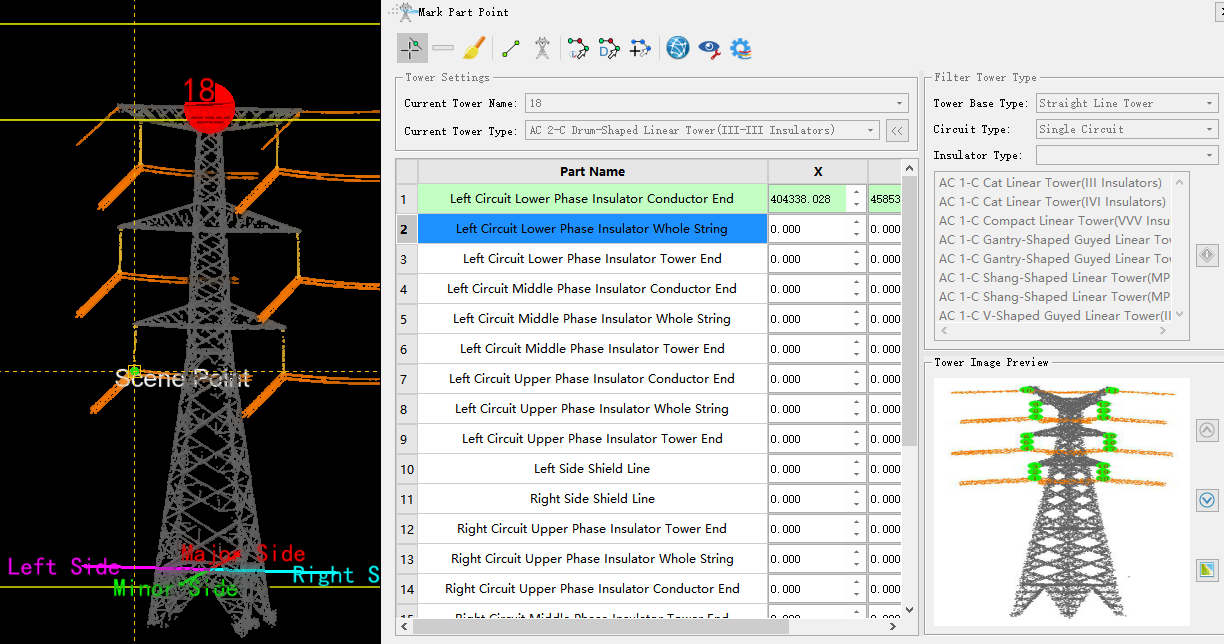
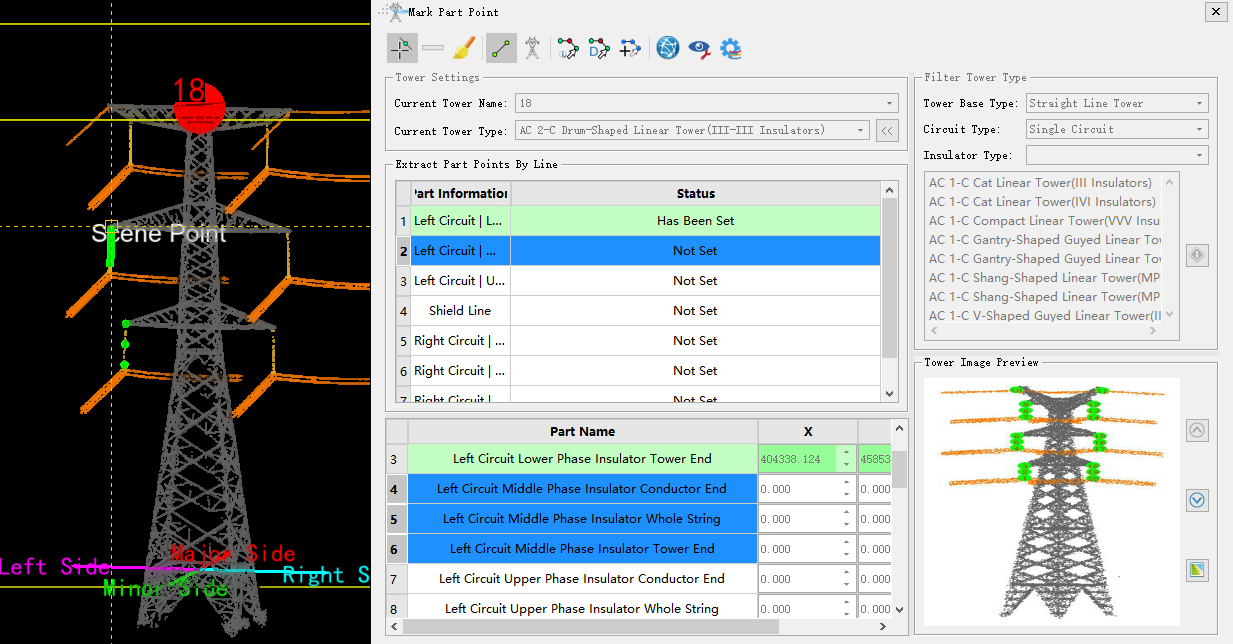
After selecting the tower type, there will be a corresponding list of part point. Select the corresponding part point on the point cloud according to the order of the list. The status of marked part point is "Has Been Set", and the status of unmarked part point is "Not Set". If there are part points that do not need to be marked, you can skip them directly and select the following part point for marking. After marking all part points, click the marking button again to finish the marking function. The list of part point and the results of part point marking are shown in the following figure.
Delete Part Point

Select the part points in the list and click the button to delete them.
Clear

Click the button to clear all marked part points.
Extract Part Points by Line
For insulators and shield lines conforming to configuration specifications, support extracting part point positions by line and automatically matching the corresponding part names.
Tower and Channel Point Recognition

Automatically recognize the five tower points and channel points.
Main Network Part Point Recognition(Conditional)
For the main network tower, based on the classified point cloud and tower configuration information, a conditional method is used to automatically extract part points.
Main Network Part Point Recognition(Deep Learning)

For the main network tower, based on the classified point cloud and tower configuration information, deep learning method is used to automatically extract part points.
Automatic Waypoint Generation

After clicking the button, corresponding waypoints will be automatically generated when generating part point.
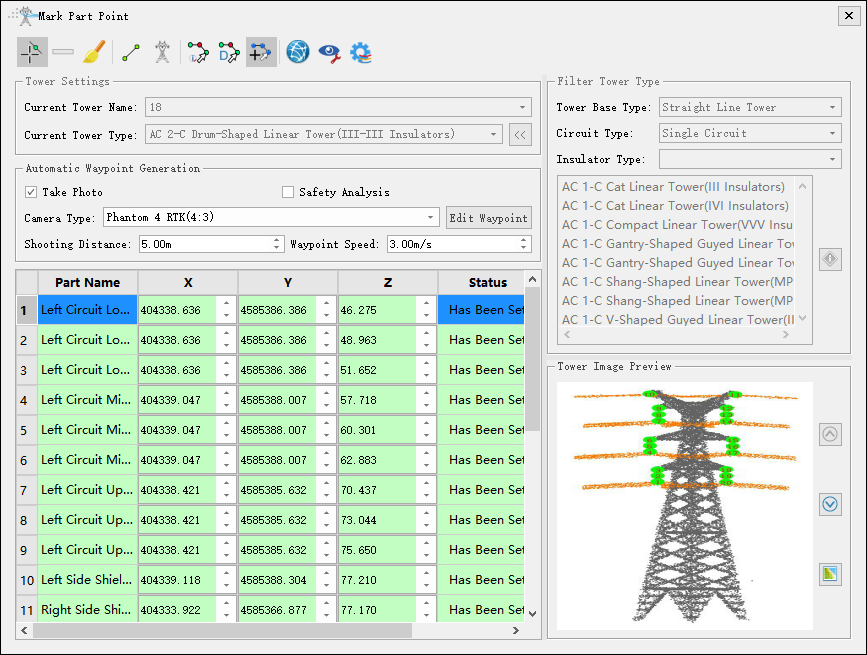
- Take Photo(Checked by default): If checked, the waypoint will include photo information.
- Safety Analysis(Unchecked by default): If checked, the safety of the trajectory will be analyzed.
- Camera Type: Set current camera type. The current camera type is set by default through Project Configuration->Camera Settings.
- Edit Waypoint: Switch to edit waypoint function.
- Shooting Distance(m)(default value is "5.0"): Set the distance from the waypoint to the part point.
- Waypoint Speed(m/s)(default value is "3.0"): Set the waypoint speed.
Channel Perspective

Click the button to display the tower from the perspective of the channel.
Hide XYZ Columns

If checked, hide the XYZ columns of the table; If unchecked, display the XYZ columns of the table.
Classification Setting

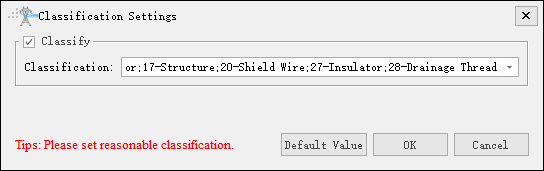
Set appropriate parameters for point cloud classification for the part point recognition of main network tower.
Filter Tower Type
Filter tower types based on tower base type, circuit type, and insulator type. You can also use the auto-recommend tower type feature based on the selected tower . If you click ">>", the filter tower type window will be displayed; if you click "<<", the filter tower type window will be hidden.
Tower Image Preview
Display a preview image of the corresponding current tower type. If clicked ">>", the tower image preview dialog box will be displayed; If clicked "<<", hide the tower type image preview dialog box.  and
 flip through images forward and backward.
Generate Image

Generate tower preview images based on tower point cloud and "Has Been Set" part point.
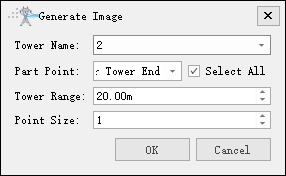
- Tower Name: Select the current tower name.
- Part Point: Check the part points that need to generate image information.
- Select All: Check or uncheck all part points.
- Tower Range(m)(default value is "20.0"): Set the extraction point cloud range for the current tower. By adjusting the range, fully display the tower and part points.
- Point Size(default value is "1"): Set the size of a single point in the point cloud in the image.
Delete Part Point

Delete part points in the scene.
Batch Extract Part Points
For selected towers, automatically extract part points in batches based on tower types and generate corresponding files.
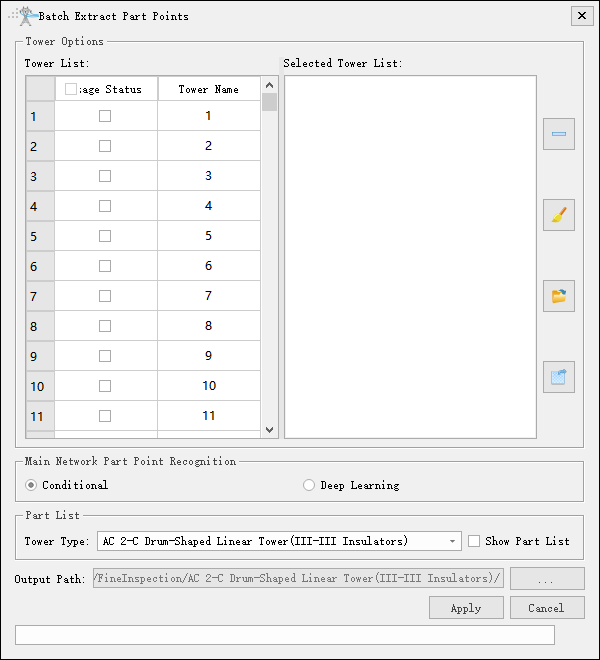
- Tower Options
- Tower List: Supports checking, double-clicking, and right-clicking to check selected items. Checked towers will be added to the selected tower list, and double-clicking can locate the tower in the scene.
- Selected Tower List: Displays the list of selected towers, supporting delete, clear, export tower files, and import tower files.
- Main Network Part Point Recognition
- Conditional: Automatically extract part points using conditional method based on classified point cloud and tower configuration information.
- Deep Learning: Automatically recognize part points using deep learning based on classified point cloud and tower configuration information.
- Part List
- Tower Type: Specify tower type, the default output path automatically updates based on tower type.
- Show Part List: Set whether to display the part list, unchecked by default. When checked, it displays the part list and supports selecting which parts to use.
- Output Path: Set the output path, defaults to creating a new tower type directory in fine inspection.