
Window Linkage

Brief: Enable windows linkage of multiple viewers.
Steps
Click Tool >
Window Linkage to open the dialog shown below: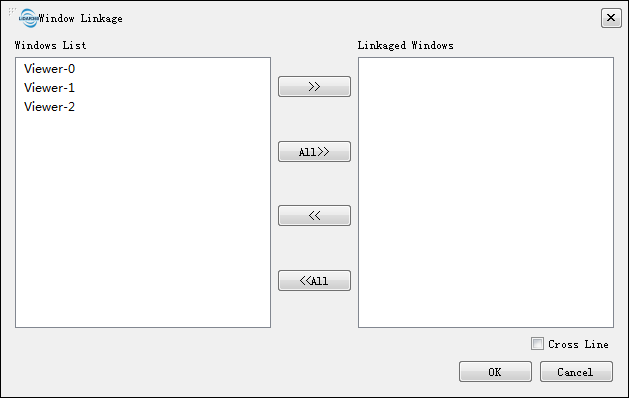
The windows list contains all windows in LiPowerline, double-click a window that needs to be linked, or select the window then click button
 to add the window. Also, user can click button
 to add all windows to linkage windows list. The Linked Windows panel lists all linked windows; double-click a window to remove it, or select the windows and then click button
 to remove. Also, user can click button
 to remove all linkage windows.
If "Cross Line" is checked, cross line will be displayed in the linkage windows. The following figure shows if the cross line is checked:
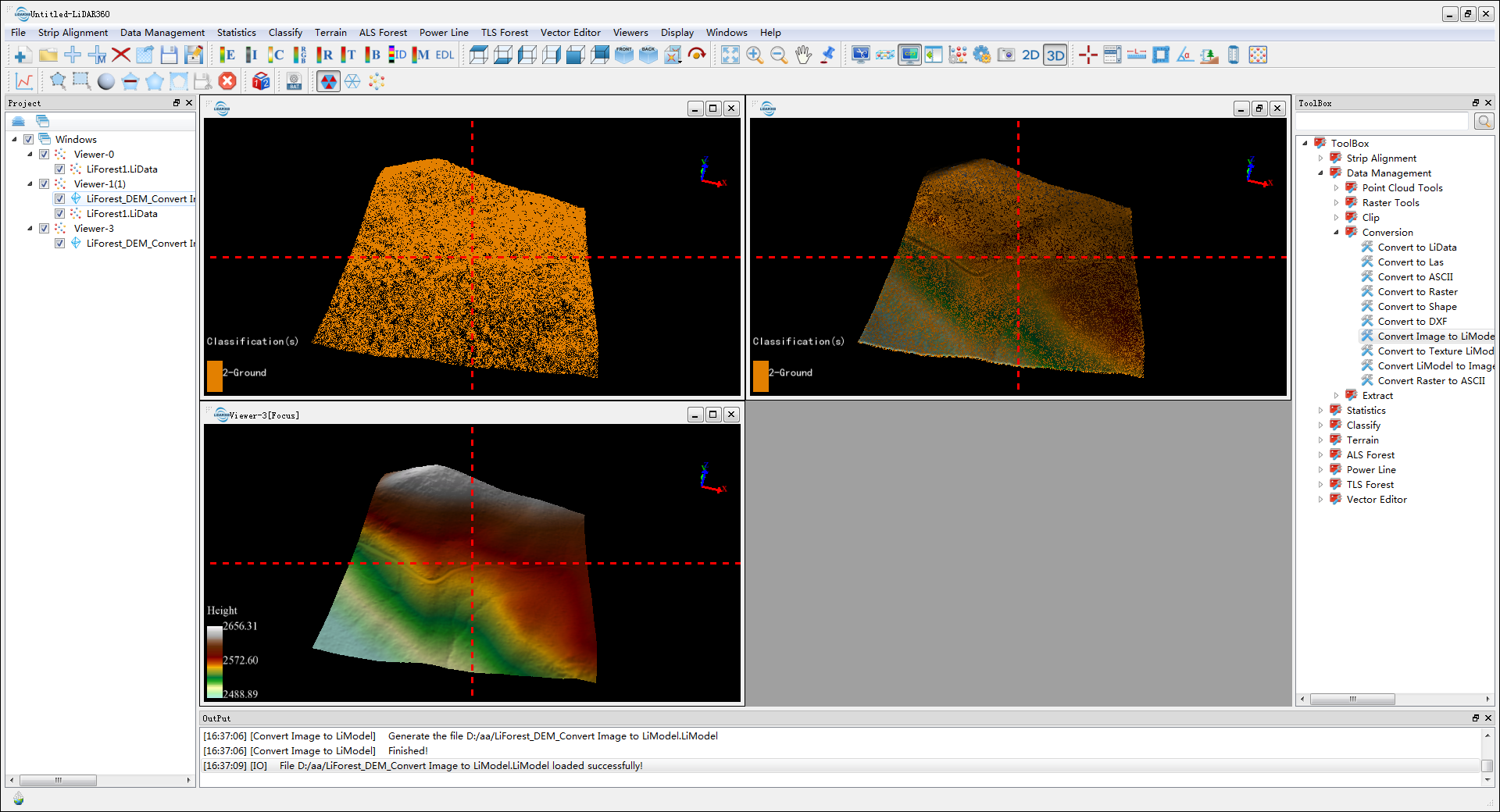
Note: If the current window contains raster data, it will be displayed in 2D. If the linkage windows contain 3D window and 2D window, the windows will be displayed in 2D mode.