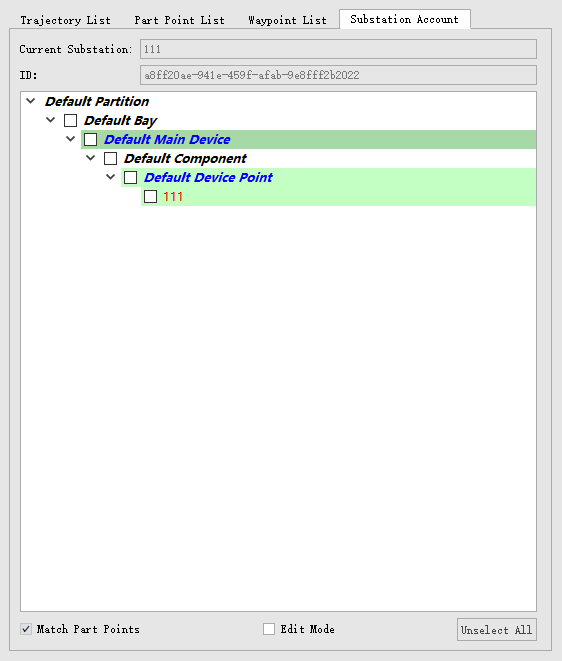
Substation Account
The substation account is an auxiliary tool window in substation inspection, with related functions including part points, trajectory copying, and trajectory generation.
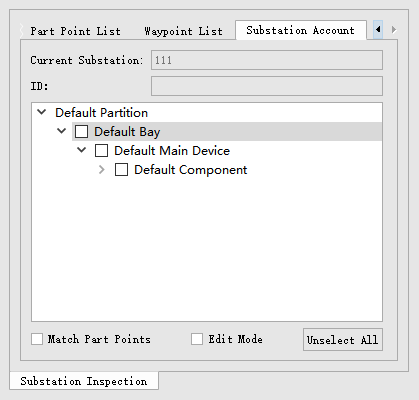
Account Import
The software supports importing accounts in three file formats: *.csv, *.xml, and *.xlsx. Account file templates can be obtained from GreenValley International personnel.
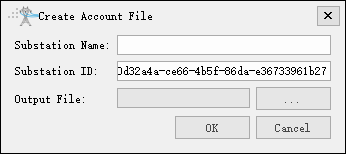
Create Account

Click this icon in project configuration to create an account file. You can edit account information in the account directory tree.
Edit Account
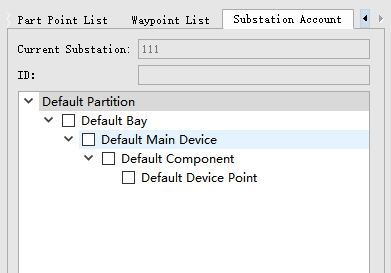
Check the edit mode to perform operations such as adding, deleting, and modifying account information. After unchecking the edit mode, it will be saved as a new csv account file.
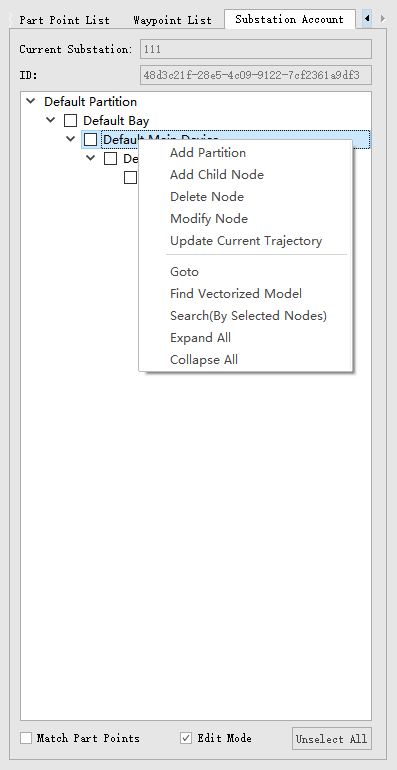
- Add Partition: Add a new partition level.
- Add Child Node: Add a next-level node.
- Delete Node: Delete the current node.
- Modify Node: Modify the current node name.
- Update Current Trajectory: After modifying account information, the point information in historical trajectories can be automatically updated.
- Goto: Only supports quick goto viewing for points that turn blue after marking.
- Find Vectorized Model: Find associated models in the vectorized model tree.
- Search (by Selected Nodes): Only search points under the selected node level. Search needed points by searching keywords. Right-click in the blank partition for global search.
- Expand All: Expand all node levels.
- Collapse All: Collapse all node levels.
Search Part Point
Quickly search points by entering keywords or complete point names.
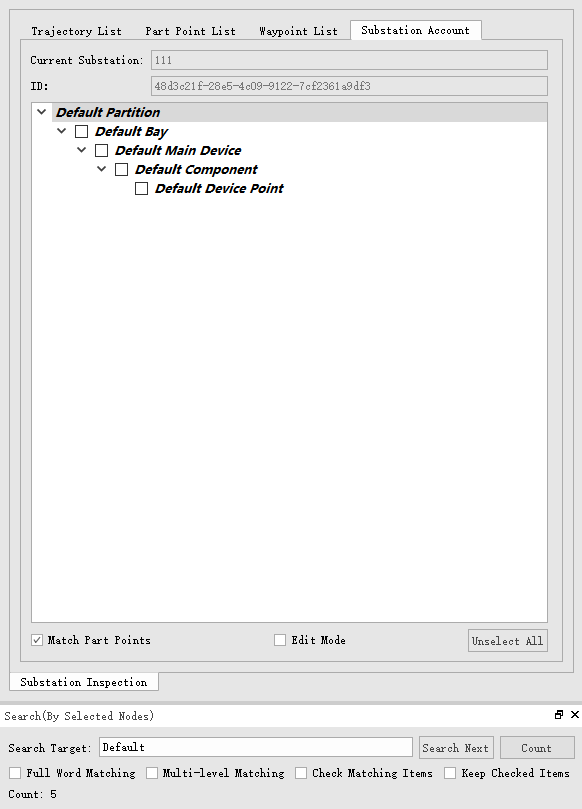
- Search Target: Can enter keywords, complete point names, or multi-level point information. Multi-level needs to be separated by "/".
- Search Next: Search the next part point target.
- Count: Count the total number of found targets, and bold all found target point names.
- Full Word Matching: Check when searching by complete point name.
- Multi-level Matching: Check when searching by multi-level.
- Check Matching Items: Check when you need to check the found target points in the account.
- Keep Checked Items: Check when you need to keep already checked points.
Mark Part Point
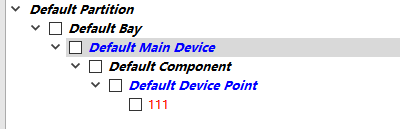
To mark part points, first double-click the part point name, the text will turn red. After marking is completed on the point cloud, the text will turn blue.
Match Part Point
Obtain part points recorded in all trajectory files in the "FineInspection" folder and part points in the scene, match them with the current account. The matched part names will be marked with a green background.