
Trajectory Model
Summary

Select the planned trajectory, click "Generate Trajectory Model" from the drop-down menu, and click Generate. The file name will be named according to the tower types, the file format is .tm format. The default output path is the "FineInspection" folder. If there is no trajectory in the current scene, you can first use the "Generate Trajectory" or "Generate Special Trajectory" functions to create a trajectory before executing this function.
Usage
Click Fine Inspection > Trajectory > Model
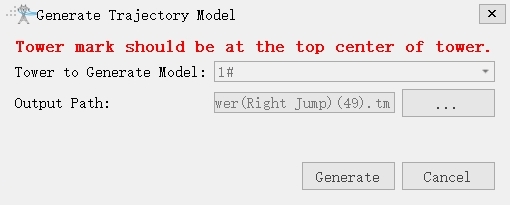
Parameter Settings
- Tower to Generate Model: Select the tower to be used for generating the model. The dropdown list will only display tower names that already have generated trajectories. When there are no trajectories in the scene, the dropdown list will be empty, making it impossible to generate a trajectory model.
Note: For example, if user has selected part points and generated trajectories on towers 18 and 19 (using the "Generate Trajectory" or "Generate Special Trajectory" functions), then the dropdown list will contain 18 and 19. The user can choose either tower 18 or 19 as the trajectory model.
- Output Path: Select the path for generating the model. The default path is the "FineInspection" folder under the working directory, with the default name "TrajectoryModel.json".
- Generate: Click Generate, and the trajectory model will be saved to the output path in Json file format.