
Batch Processing Operation
Summary
Batch processing includes Statistics, Part Point Account, Batch Modify Part Points, Batch Safety Checking, Check Safety Between Trajectories, Batch Check Waypoint, Batch Edit Waypoint, Batch Save As Trajectory, Batch Set Emergency Return Points, Export to CSV, Export To Other Formats, Export to DJI Pilot and other functions.
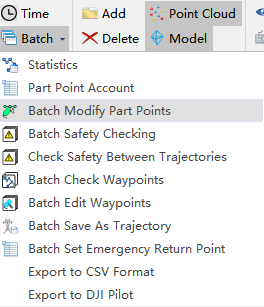
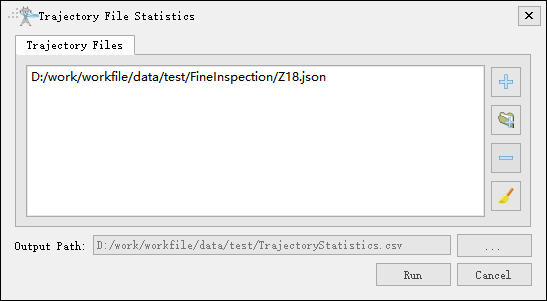
Statistics

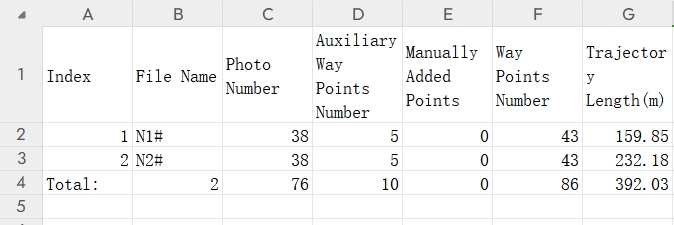
Statistics can export the parameter statistics table of trajectories, click run to generate a csv format file. The file is saved in the project folder. The statistics table mainly counts the number of photos in the trajectory, the number of auxiliary points, the number of manually added points, and the number of waypoints, as shown in the figure below.
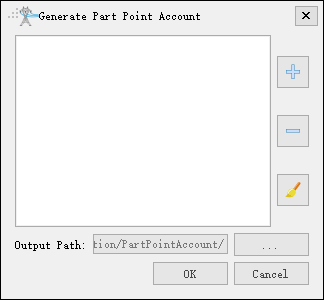
Part Point Account

Add trajectory files, run to generate a csv file, the file is saved in the part point account folder under the fine inspection folder.
Batch Modify Part Points

When the trajectory is open, you can choose to move part point positions, modify part point Z values, modify part point names, and delete part point names. Left-click to select the part point to be modified, click  to update the list, click
 to remove selected data, click
 to clear the data list
Usage
- Select the part point to be modified in the scene, click the button to add to the list; or after opening the interface, select the part point to be modified in the scene, click the button to update the list.
- When modifying part point position, you need to set the XYZ values; or check Select Part Point and then click the scene point cloud to update XYZ values, finally confirm the modification.
- When modifying part point name, you need to select an option with ID information in the substation account tree, then confirm the modification.
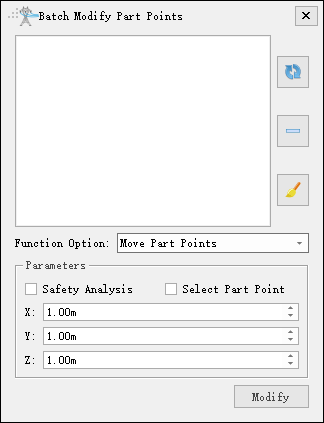
- Function Option
- Move Part Points: Move all part point positions in the list.
- Modify Part Point Z Value: Only modify the Z value of all part points in the list.
- Modify Part Point Name: Select an option with ID information in the substation account tree, modify all part point names in the list.
- Delete Part Point Name: Delete all part point names in the list.
- Parameters
- Safety Analysis: After checking, the trajectory will perform safety analysis check after modifying part points; otherwise, no safety analysis will be performed.
- Select Part Point: After checking, you can click the position in the scene with the left mouse button, and update X, Y, and Z values according to the difference between the selected part point and the clicked position.
- X: Set X value, can be set by left-clicking after checking Select Part Point.
- Y: Set Y value, can be set by left-clicking after checking Select Part Point.
- Z: Set Z value, can be set by left-clicking after checking Select Part Point.
Batch Safety Checking

Batch check mainly checks whether there are problems in the trajectory files that do not meet the requirements.
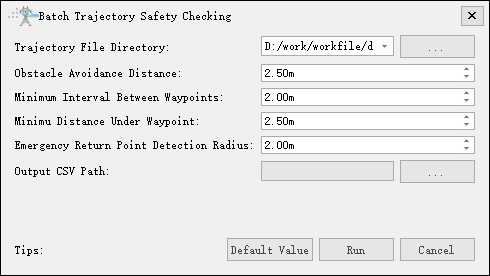
- Trajectory File Directory: Default fine inspection folder.
- Obstacle Avoidance Distance: Default consistent with inspection configuration.
- Minimum Interval Between Waypoints: Minimum safe distance between waypoints, default 0.50m.
- Minimum Distance Under Waypoint: Minimum distance under waypoint, default 2.50m.
- Emergency Return Point Detection Radius: Emergency return point detection radius, default 2.00m.
- Output CSV Path: Output CSV file path, default batch trajectory check.csv.

Check Safety Between Trajectories
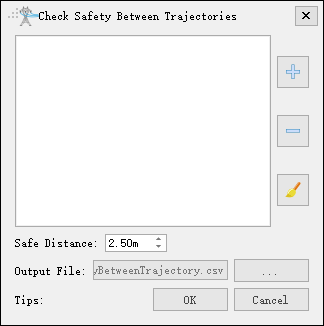
Check whether multiple trajectories meet the safe distance between them.

Batch Check Waypoints

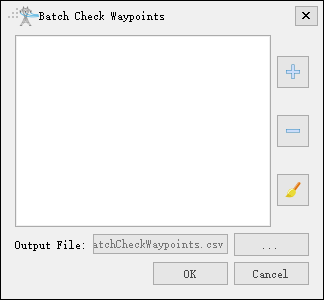
Batch check mainly checks the correspondence between part points and waypoints.
Batch Edit Waypoints

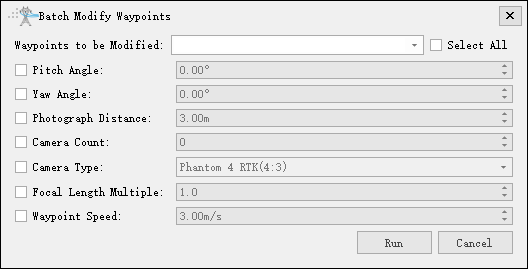
When the trajectory is open, you can choose batch modify waypoints, select multiple waypoints to modify pitch angle, yaw angle, photograph distance, camera number, camera type, focal length multiple, and waypoint speed.
Batch Save As Trajectory

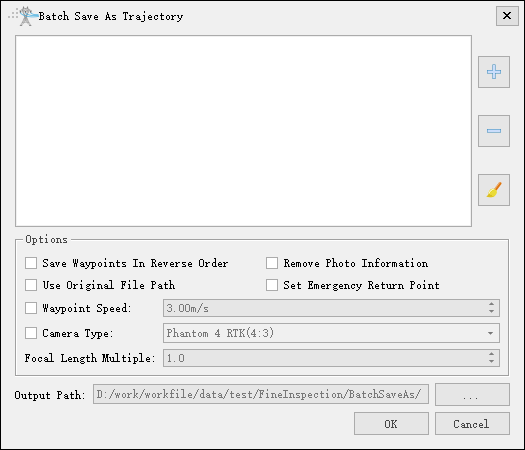
Batch save as trajectory can realize waypoint reverse order save, remove photo information, use original path, set emergency return point, set waypoint speed, modify camera type and focal length multiple, etc., as shown in the figure below.
Batch Set Emergency Return Points
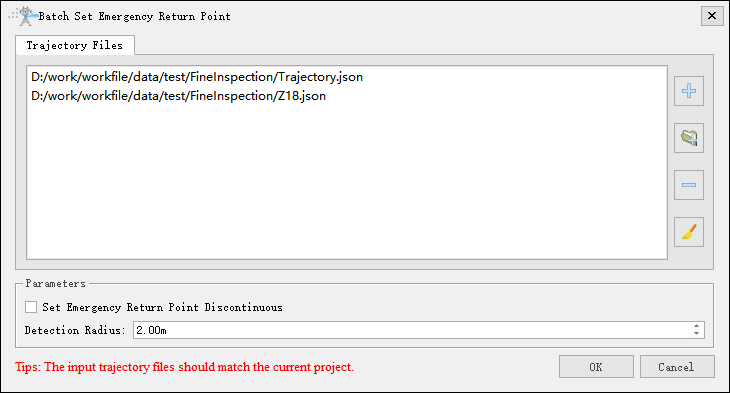
According to the set detection radius, automatically calculate whether there is obstacle point cloud above the waypoint. If there is no obstacle, set the waypoint as an emergency return point. If the 'Set emergency return points not continuous' option is checked, there will be no case where two adjacent waypoints are emergency return points at the same time.
Export to CSV
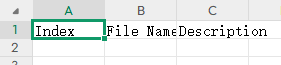
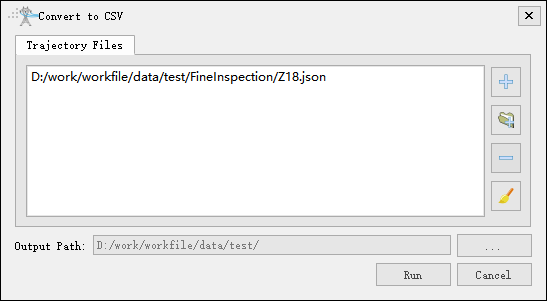
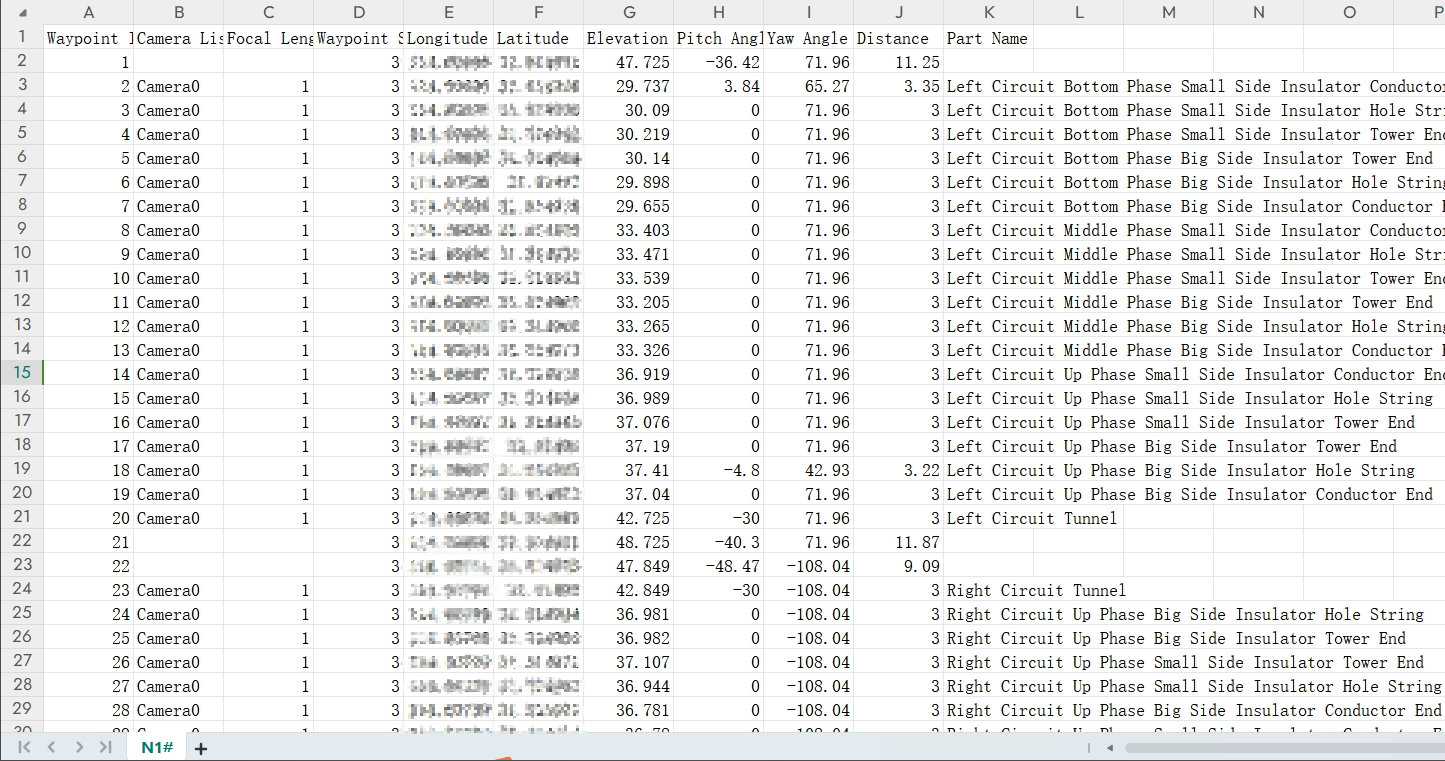
Export to CSV is to convert trajectory files into CSV format table files, which can quickly view the parameters of each waypoint, as shown in the figure below. The file is saved in the working directory by default.
Export to DJI Pilot
Convert to drone trajectory adapted to DJI Pilot app, format is KML or KMZ. In advanced settings, you can set yaw angle mode (1 smooth transition; 2 along trajectory direction) and waypoint turn mode (1 fly straight to waypoint and stop; 2 smooth over waypoint and turn in advance).
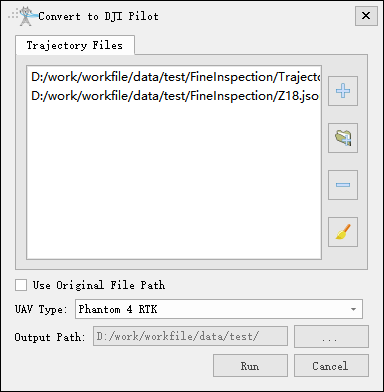
- Use Original File Path: Automatically generate a folder named after the drone model under the trajectory path, and store the converted trajectory file.
- UAV Type: Set UAV type, which is used to select the corresponding camera parameters for the trajectory.