
Rolling Screen

Brief: Enable rolling screen for current viewer.
Steps
Click Tool >
Rolling Screen to open the dialog shown below: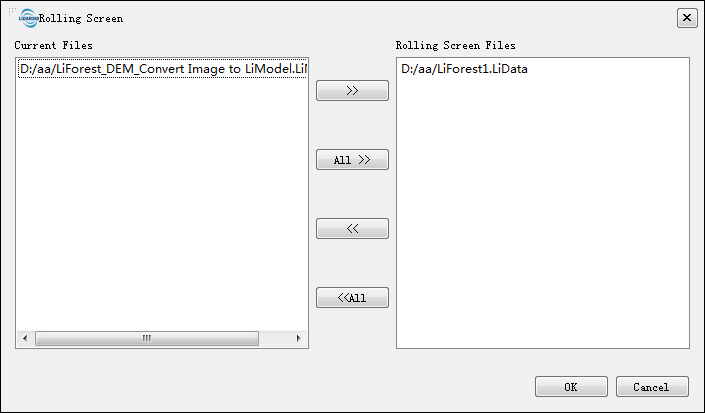
Current files list contains files in current viewer. Double-click a file that needs to be added to rolling screen, or select files and then click
 , or click button
 to add all files to rolling screen files. The rolling screen files list contains files in rolling screen, double-click a file to remove, or select files and then click button
 to remove, or click button
 to remove all files.
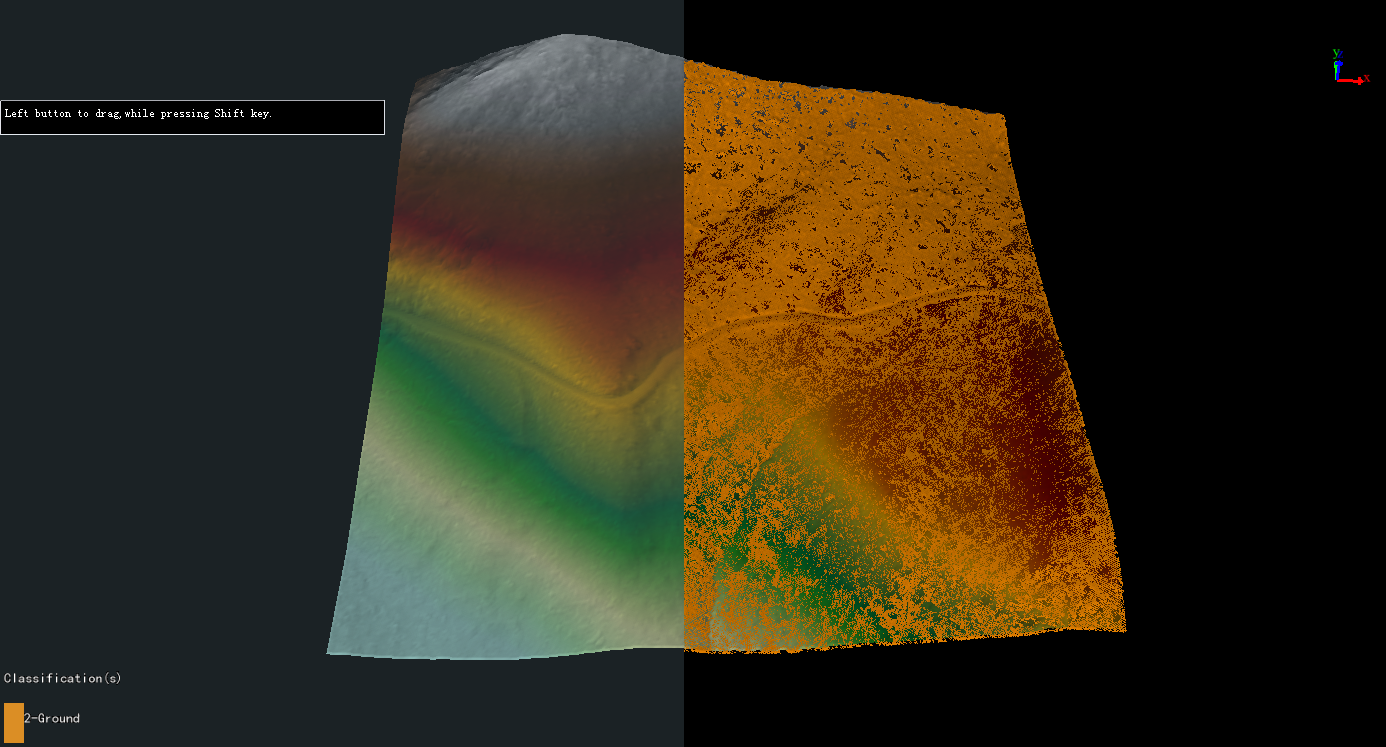
Click "OK". In the viewer, press the "Shift" button on the keyboard then drag. The window is shown below:
Settings
- Prerequisite: An active viewer.
Note: This function cannot be apply to the profile window. Click this button again to exit.