
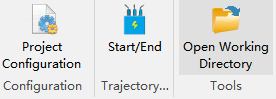
Project Configuration
Click "Project Configuration" to set up substation inspection parameters, which mainly include General Settings, Inspection Settings, and Camera Settings.
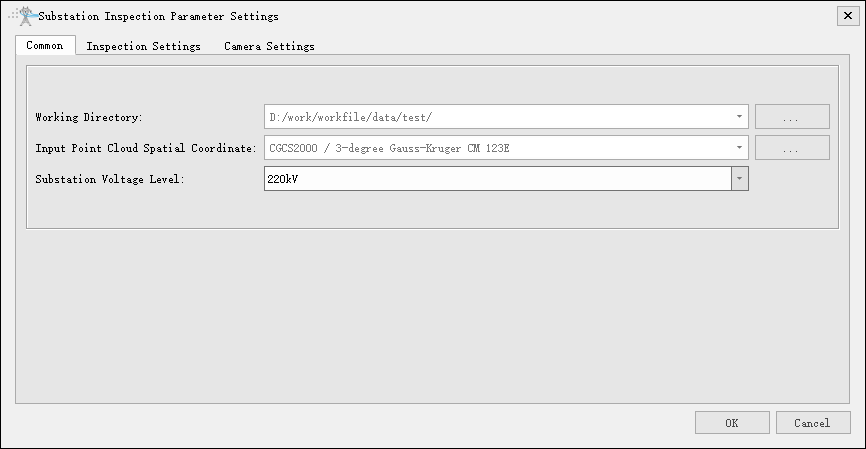
Common Settings
Mainly sets up the working directory, point cloud coordinate system, and substation voltage level, without detailed introduction.
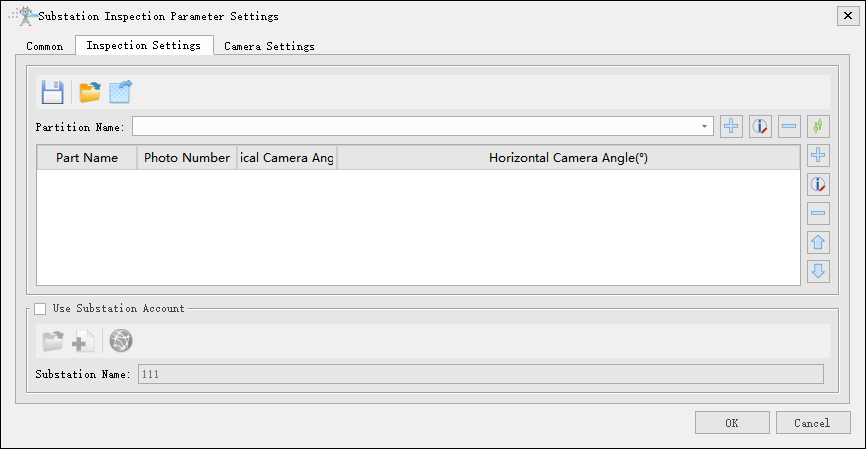
Inspection Settings
Inspection Settings allows saving file, importing CSV configuration file, exporting CSV configuration file, adding partition, modifying partition, deleting partition, sorting partition up and down, adding part point, modifying part point, deleting part point, and moving part point up and down.
Save File

Save partition configuration file.
Import CSV File

Import partition configuration file.
Export CSV File

Export partition configuration file.
Add Partition

Add partition and set partition name.
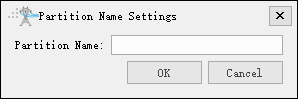
Modify Partition

Modify current partition name.
Delete Partition

Delete current partition name.
Sort Partition

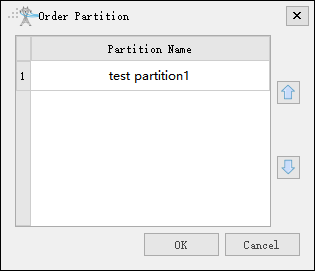
Sort multiple partitions.
The buttons on the right side from top to bottom are: Add Part Point, Modify Part Point, Delete Part Point, Move Part Point Up, and Move Part Point Down.
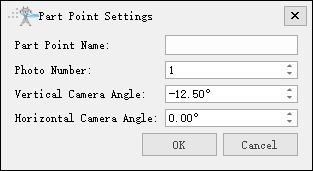
- Part Point Name: Custom part point name.
- Photo Number: Number of photos to take, default is 1.
- Vertical Camera Angle: Vertical camera angle setting.
- Horizontal Camera Angle: Horizontal camera angle setting.
Use Substation Account
Import CSV account file. The substation account file needs to be sent to Green Valley personnel for conversion before use.

Create an account file, generate a new blank account, which can be used to edit account point information in the account directory tree of trajectory planning.

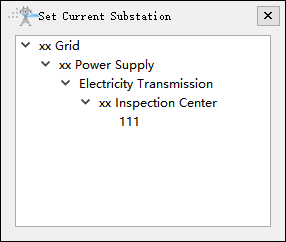
Set the current substation, find the corresponding substation and double-click to confirm, as shown in the figure below.
Camera Settings
Camera Settings provides multiple types of UAV gimbal cameras by default. The red line indicates the currently used camera. Right-click to set the current camera.
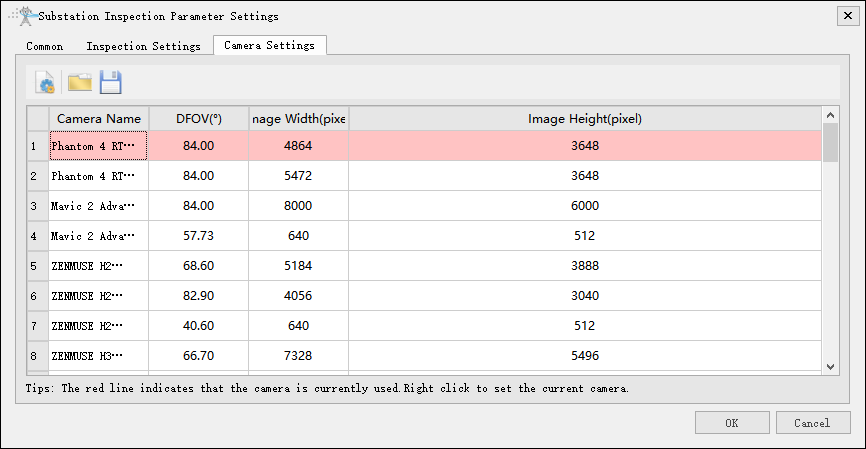

Load default settings.

Open camera configuration file.
Save camera configuration file.