Tower Tools
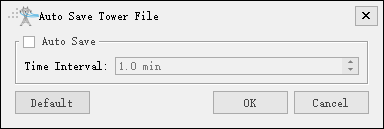
Auto Save Tower File

Set a time interval to automatically save tower files and prevent tower data loss due to unexpected situations.
Reverse Sequence Of Tower

Automatically reverse the list of towers and save it to the specified file.
Extract Tower Point

Interactive extraction of tower point: Manually select the area where the target line is located and automatically extract tower point within that area. Commonly used in scenarios where multiple lines are parallel. Try to avoid including other lines when selecting boxes.
Automatic extraction of tower points: Using input point clouds for classification, clustering the tower point clouds and extracting tower point. The extracted tower point can be sorted based on the wire connection relationship between the towers.
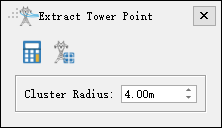
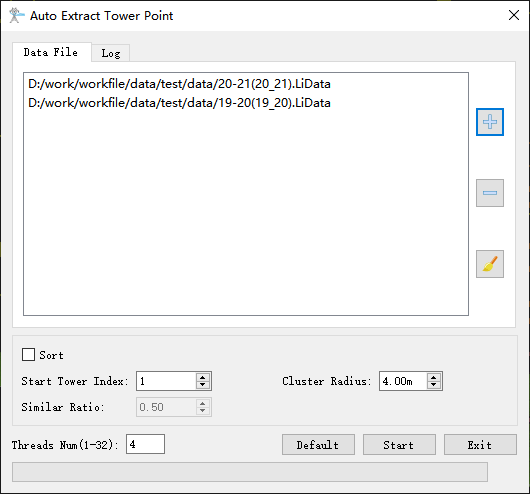
- Set Parameters
- Sort: Whether to sort, if not checked, default sorting will be used.
- Start Tower Index: The starting value of the tower number is incremented in sequence for subsequent tower numbers.
- Cluster Radius(m)(default value is "4.00"): The clustering radius of tower point clouds is generally set as the minimum distance between towers.
- Similar Ratio: The height similarity of the same series of towers is generally the ratio of the minimum height to the maximum height of all towers.
- Threads Num(default value is "4.00"): Set the number of threads when running the tool.
- Default: Restore default parameter settings.
Extract Tower Points Based On Photos
Automatically extract tower points based on photos. The functional interface is shown in the following figure, which can process multiple data simultaneously. Click to add pending data, click
 to remove the selected data, click
 to clear the data list.
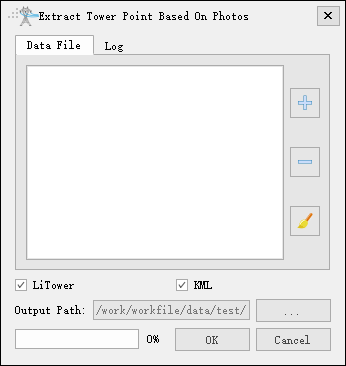
- Set Parameters
- LiTower: Selected by default. Select to output the LiTower file. If not selected, the LiTower file will not be output.
- KML: Selected by default. Select to output the KML file. If not selected, the KML file will not be output.
- Output Path: Set the output path of the analysis result file, which defaults to the working directory.
Calibrate Tower Point Position
Automatically calibrate the position of tower points. To use this function, the tower points should be classified first before calibration.
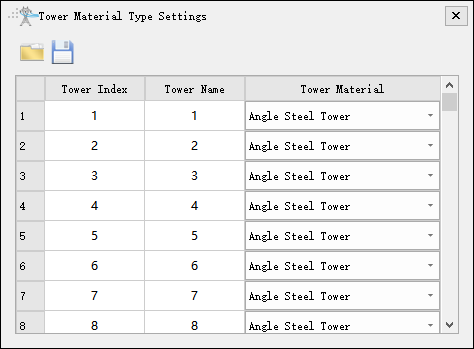
Tower Material Type Settings

Edit the material type of the tower. Right-click to batch set the tower material. It can be opened and saved as a file (*. txt). The file is applied to Measure Tower Inclination.
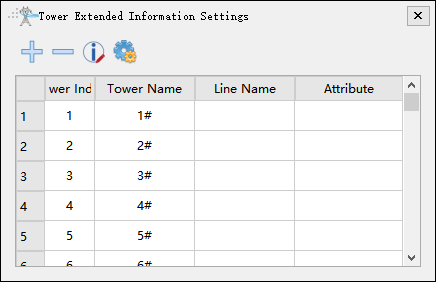
Tower Extended Information Settings
Edit the tower extension information. Upon exiting after editing, it will be automatically saved as a file in LiTowerExt format. The saved results are used to generate images during report generation. The functions support adding, deleting, modifying, and setting columns, as well as setting column values via the right-click menu.