
Part Point Operation
The part point menu mainly includes Add, Extract by Line, Modify, and Delete functions.
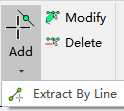
Add

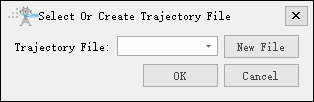
Add part points. If adding part points to an existing trajectory, select the trajectory. If creating a new trajectory, click New File and customize the trajectory file name.
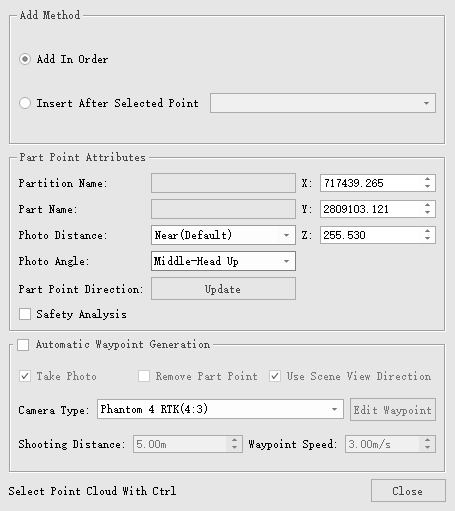
- Add Method
- Add in Order: Part points are added in the order they are selected.
- Insert After Selected Point: Select a part point number from the dropdown menu to add after the selected point.
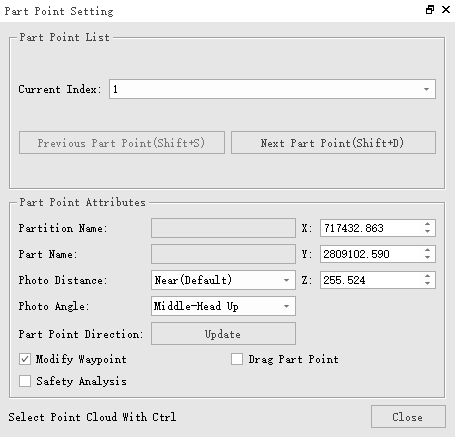
- Part Point Attributes
- Partition Name: Select the partition name from the dropdown box.
- Part Name: Select the part name from the dropdown box.
- Photo Distance: Select the photo distance from the dropdown box, mainly including Near (default) and Far.
- Photo Angle: Select the photo angle from the dropdown box, mainly including Middle-down(default), Left-Down, Right-Down, Middle-Head Up, Left-Head Up, and Right-Head Up.
- Part Point Direction: Click Update to update the current scene view direction as the part point direction.
- Safety Analysis: After checking, when the selected part point generates corresponding waypoints, trajectory safety analysis calculation will be automatically performed.
- Automatic Waypoint Generation
- Take Photo: Check to generate photo waypoints, uncheck to generate auxiliary waypoints.
- Remove Part Point: When Photo is unchecked, auxiliary waypoints are generated. When this option is checked, the corresponding part point is removed.
- Use Scene View Direction: Check to use the current scene view direction to generate waypoints, uncheck to generate waypoints according to the default photo angle. The default current scene view direction is the part point direction, which can be modified through Part Point Attributes - Part Point Direction - Update.
- Camera Type: Set the camera type for the current waypoint.
- Edit Waypoint: Click to enter the edit state of the current waypoint.
- Photo Distance (m) (default is "5.00"): Customize the photo distance.
- Waypoint Speed (m/s) (default is "3.00"): Set the waypoint speed.
- Select Point Cloud With Ctrl: Hold down the Ctrl key and left-click to modify the current point.
Extract by Line

Select two points to draw a green line, automatically generate corresponding part points according to the number of segments.
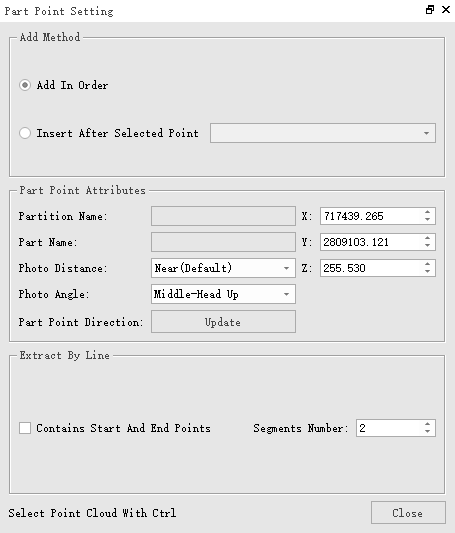
- Extract by Line
- Contains Start and End Points: Check to generate part points at both ends of the line.
- Segments Number: Set the number of segments to generate part points at the average segment points of the line.
Tip: Part points generated by each line extraction use the same part point name and partition name.
Modify

After clicking the function icon, select part points to modify them. Hold down the Ctrl key to reselect the part point position. Check "Drag Waypoint" to move the part point position in the current 2D plane view.
Delete

After clicking the function icon, select part points to delete them.
Part Point List
The part point list mainly includes part point index, part names, and checkboxes for generating trajectories. In the right-click operation of the part point list, you can delete, find associated trajectory files, export selected part points, and set the usage status of part points.
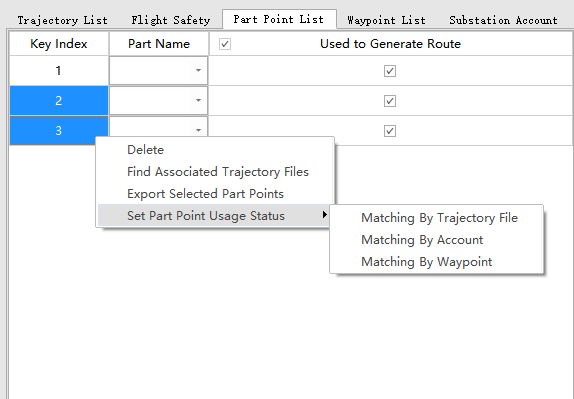
- Delete: Delete part points.
- Find Associated Trajectory Files: Find trajectory files containing selected part points from existing historical trajectory files, and output and save them in a new directory.
- Export Selected Part Points: Export selected part point information and save as a new json trajectory file.
- Set Part Point Usage Status
- Matching By Trajectory File: Match part points according to the selected trajectory file, and check the matched part points in the part point list.
- Matching By Account: Match according to the account check items, and check the matched part points in the part point list.
- Matching By Waypoint: Match according to the photo waypoints in the current trajectory, and check the part points in the part point list that are not associated with waypoints.