
TIN Tool
Summary
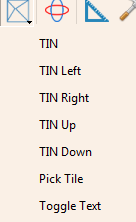
To build triangulation model.Triangulaltion model will change in real time when users are editing point cloud data class, to help users see the effect of editing. To increase editing efficience, users can set block width value to build TIN by block. Then pan left/right/up/down or select a specific block while editing. This process is actually browsing and editing .LiTIN in RAM, including Add Point and Delete Point.
Note:
TIN
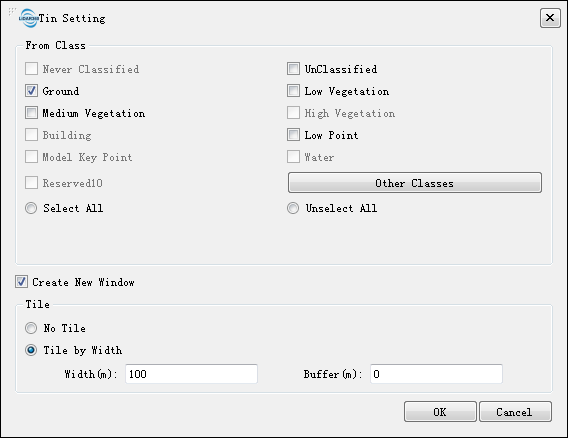
Click TIN to open setting window, as the picture below:
Parameters:
- From Class:Users need to select original class. e.g. Users can select ground point in From Class to build TIN and help editing ground point classification.
- New Viewer:
- Yes(By default): Create a new viewer to display TIN.
- No: Display TIN in main viewer.
- Non-blocking:
- **Block, width(100m by default) **: The width value of each block.
- Block, buffer(0m by default):The overlapping width value of two blocks.
TIN Pan Left
In the TIN display combination table, move the current TIN block horizontally to the left by one unit.
TIN Pan Right
In the TIN display combination table, move the current TIN block horizontally to the right by one unit.
TIN Pan Up
In the TIN display combination table, move the current TIN block horizontally upside by one unit.
TIN Pan Down
In the TIN display combination table, move the current TIN block horizontally downside by one unit.
Select Block
Left click to select block to be checked in the TIN display combination table, and the selected block will display in the viewer center.
Show/Hide Text
Show/Hide TIN display combination table